> ## Documentation Index
> Fetch the complete documentation index at: https://docs.weborion.io/llms.txt
> Use this file to discover all available pages before exploring further.
# Auto Finetune
> Analyse your recent alerts automatically and apply suggested threshold and do-not-monitor adjustments to reduce false positives.
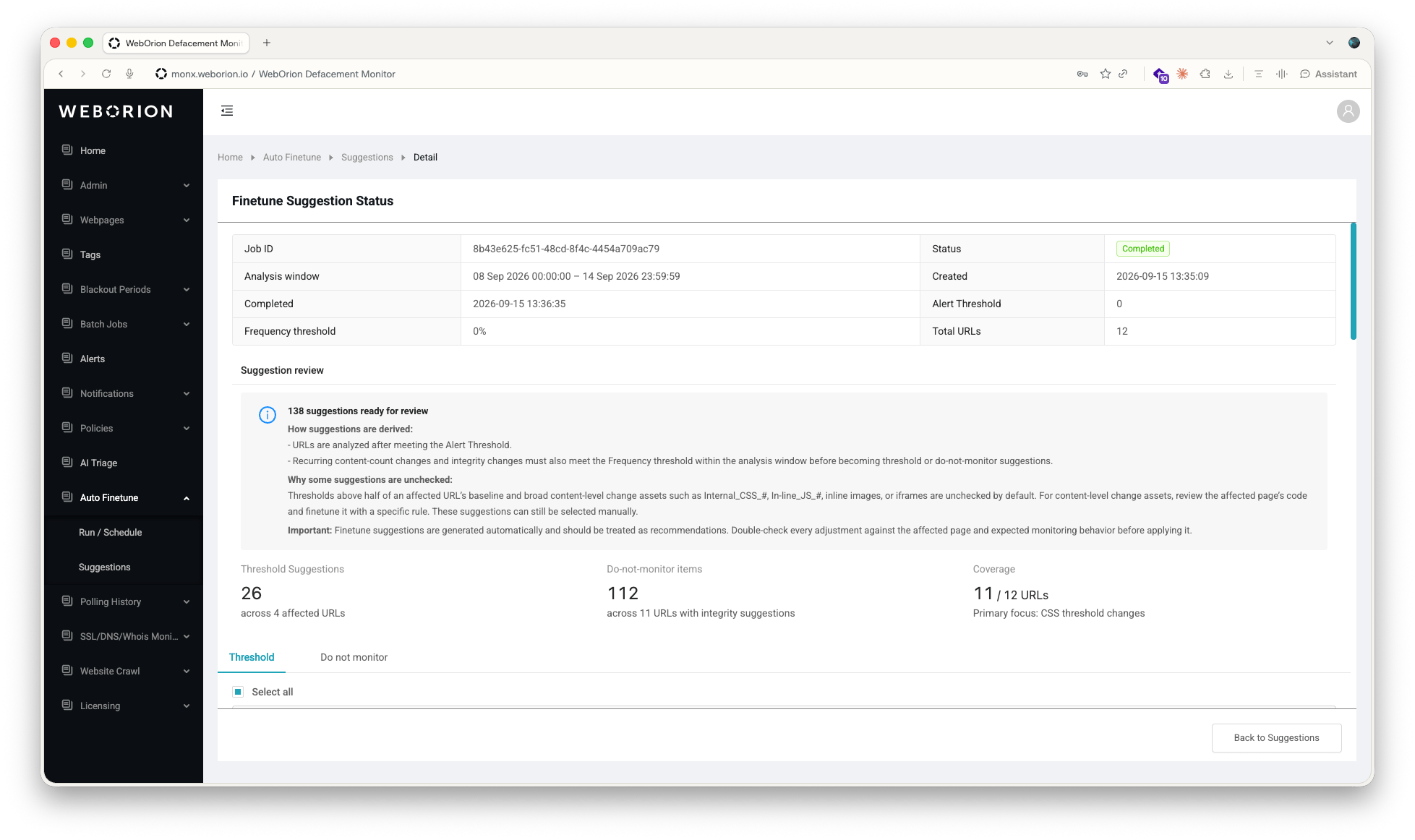 Auto Finetune analyses the alerts that WebOrion raised for your webpages over a period you choose, looks for changes that keep repeating, and turns them into suggestions that you review and apply in a few clicks. It automates the manual tuning described in [Reducing False Positives](/defacement-monitor/configuring-monitoring/reducing-false-positives): setting element-count thresholds and adding do-not-monitor rules to policies.
Auto Finetune produces two kinds of suggestions:
| Suggestion | What it changes | Example |
| - | - | - |
| **Threshold** | The acceptable ± range for an element count on a webpage, the same value as the **Threshold** column in the webpage's **Content & Integrity Analytics** tab. | The number of HTML lines on a page swings by 3 in most alerts, so a threshold of 3 is suggested for **# of HTML Lines**. |
| **Do not monitor** | A `Do Not Monitor` rule in the webpage's policy. | The same tracking script changes in 8 out of 10 alerts, so a rule that excludes that script is suggested. |
Auto Finetune works with the Content & Integrity Analytics engine. If you can't open the **Auto Finetune** pages, reach out to [Customer Support](/defacement-monitor/getting-support/customer-support).
Suggestions are generated automatically from past alerts. Treat them as recommendations: check each one against the affected page before you apply it. Every threshold you raise and every element you exclude reduces what WebOrion can detect on that page.
## How suggestions are generated
1. WebOrion counts the alerts raised for each webpage within the **analysis window**. Only webpages that raised at least as many alerts as the **Alert Threshold** are analysed.
2. For each analysed webpage, WebOrion compares the changes detected across its alerts:
* **Element counts** — Href Links, Images, Javascripts, Cascading Style Sheets, Iframes, Divisions, Forms, and # of HTML Lines. The change amount that appears most often becomes the suggested threshold.
* **Integrity elements** — individual scripts, stylesheets, images, and links. Elements that changed in at least the **Frequency threshold** percentage of alerts become do-not-monitor rule suggestions.
3. Suggestions are grouped by domain and by policy, so you can apply related changes together.
Every analysis, whether one-time or scheduled, uses the following settings.
| Setting | Description | Default |
| - | - | - |
| **Analysis window** | The period of alerts to analyse. A window can cover at most 7 days. | The previous day |
| **Alert Threshold** | The minimum number of alerts a webpage must have raised within the window before it's analysed. A whole number, 0 or greater. Lower it to include webpages that alert less often. | 10 |
| **Frequency threshold** | The minimum percentage of a webpage's alerts in which a change must appear before it becomes a suggestion, from 0% to 100%. Raise it to get fewer, more consistent suggestions. | 30% |
| **Email Notification Contact Group** | The [contact group](/defacement-monitor/managing-notifications/contact-groups) that receives an email when the analysis completes. Select **No email notifications** to skip the email. | No email notifications |
## Run a one-time analysis
Auto Finetune analyses the alerts that WebOrion raised for your webpages over a period you choose, looks for changes that keep repeating, and turns them into suggestions that you review and apply in a few clicks. It automates the manual tuning described in [Reducing False Positives](/defacement-monitor/configuring-monitoring/reducing-false-positives): setting element-count thresholds and adding do-not-monitor rules to policies.
Auto Finetune produces two kinds of suggestions:
| Suggestion | What it changes | Example |
| - | - | - |
| **Threshold** | The acceptable ± range for an element count on a webpage, the same value as the **Threshold** column in the webpage's **Content & Integrity Analytics** tab. | The number of HTML lines on a page swings by 3 in most alerts, so a threshold of 3 is suggested for **# of HTML Lines**. |
| **Do not monitor** | A `Do Not Monitor` rule in the webpage's policy. | The same tracking script changes in 8 out of 10 alerts, so a rule that excludes that script is suggested. |
Auto Finetune works with the Content & Integrity Analytics engine. If you can't open the **Auto Finetune** pages, reach out to [Customer Support](/defacement-monitor/getting-support/customer-support).
Suggestions are generated automatically from past alerts. Treat them as recommendations: check each one against the affected page before you apply it. Every threshold you raise and every element you exclude reduces what WebOrion can detect on that page.
## How suggestions are generated
1. WebOrion counts the alerts raised for each webpage within the **analysis window**. Only webpages that raised at least as many alerts as the **Alert Threshold** are analysed.
2. For each analysed webpage, WebOrion compares the changes detected across its alerts:
* **Element counts** — Href Links, Images, Javascripts, Cascading Style Sheets, Iframes, Divisions, Forms, and # of HTML Lines. The change amount that appears most often becomes the suggested threshold.
* **Integrity elements** — individual scripts, stylesheets, images, and links. Elements that changed in at least the **Frequency threshold** percentage of alerts become do-not-monitor rule suggestions.
3. Suggestions are grouped by domain and by policy, so you can apply related changes together.
Every analysis, whether one-time or scheduled, uses the following settings.
| Setting | Description | Default |
| - | - | - |
| **Analysis window** | The period of alerts to analyse. A window can cover at most 7 days. | The previous day |
| **Alert Threshold** | The minimum number of alerts a webpage must have raised within the window before it's analysed. A whole number, 0 or greater. Lower it to include webpages that alert less often. | 10 |
| **Frequency threshold** | The minimum percentage of a webpage's alerts in which a change must appear before it becomes a suggestion, from 0% to 100%. Raise it to get fewer, more consistent suggestions. | 30% |
| **Email Notification Contact Group** | The [contact group](/defacement-monitor/managing-notifications/contact-groups) that receives an email when the analysis completes. Select **No email notifications** to skip the email. | No email notifications |
## Run a one-time analysis
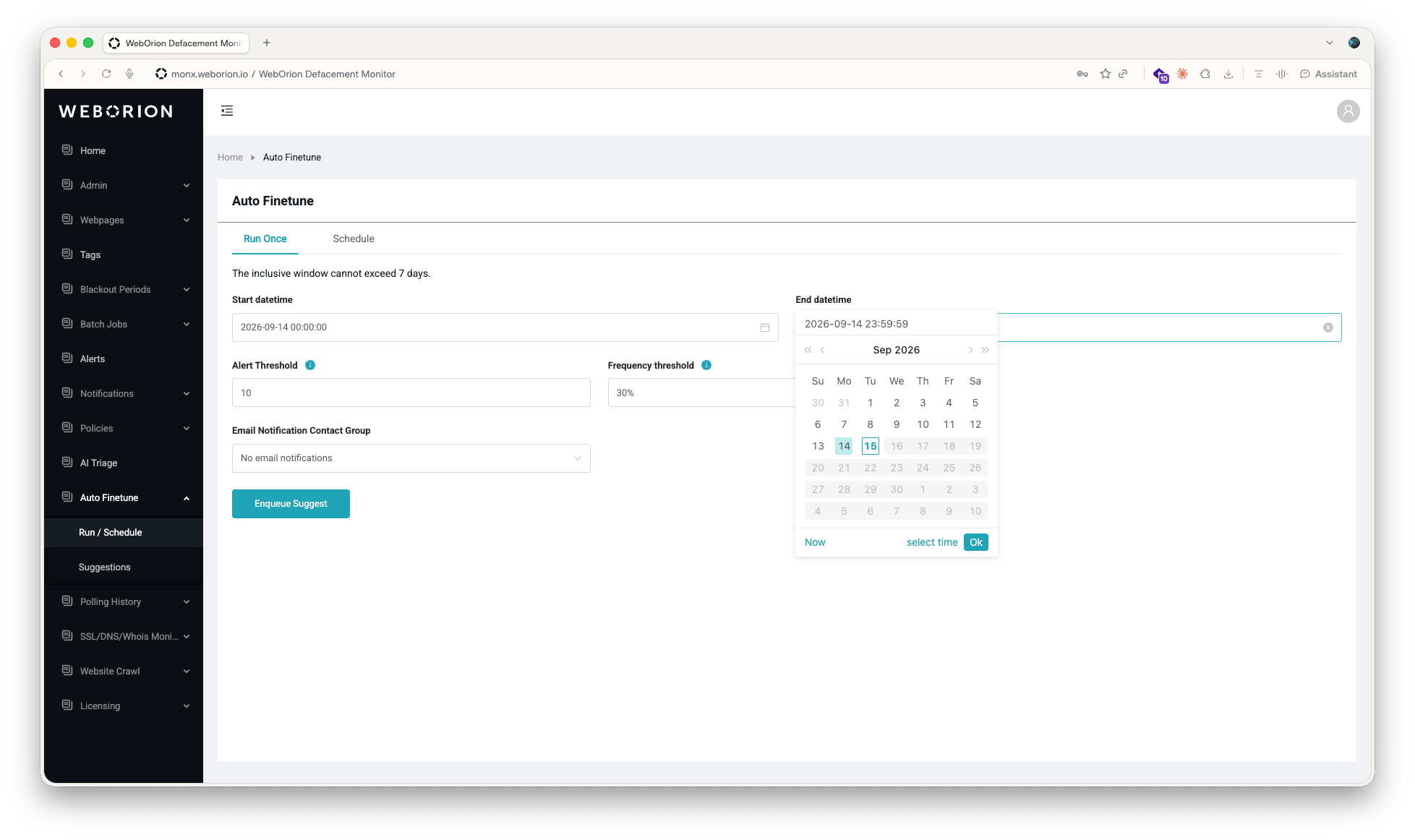 1. Go to **Auto Finetune → Run / Schedule**. The **Run Once** tab is selected by default.
2. Set the **Start datetime** and **End datetime** of the analysis window. The window defaults to the previous day, can span at most 7 days, and can't end in the future.
3. Adjust the **Alert Threshold** and **Frequency threshold**, or keep the defaults.
4. Under **Email Notification Contact Group**, select the group to notify when the results are ready.
5. Click **Enqueue Suggest**.
WebOrion queues the job and shows a confirmation with a **View details** link. Results are usually ready within a few minutes, depending on how many alerts fall within the window.
## Schedule recurring analyses
1. Go to **Auto Finetune → Run / Schedule**. The **Run Once** tab is selected by default.
2. Set the **Start datetime** and **End datetime** of the analysis window. The window defaults to the previous day, can span at most 7 days, and can't end in the future.
3. Adjust the **Alert Threshold** and **Frequency threshold**, or keep the defaults.
4. Under **Email Notification Contact Group**, select the group to notify when the results are ready.
5. Click **Enqueue Suggest**.
WebOrion queues the job and shows a confirmation with a **View details** link. Results are usually ready within a few minutes, depending on how many alerts fall within the window.
## Schedule recurring analyses
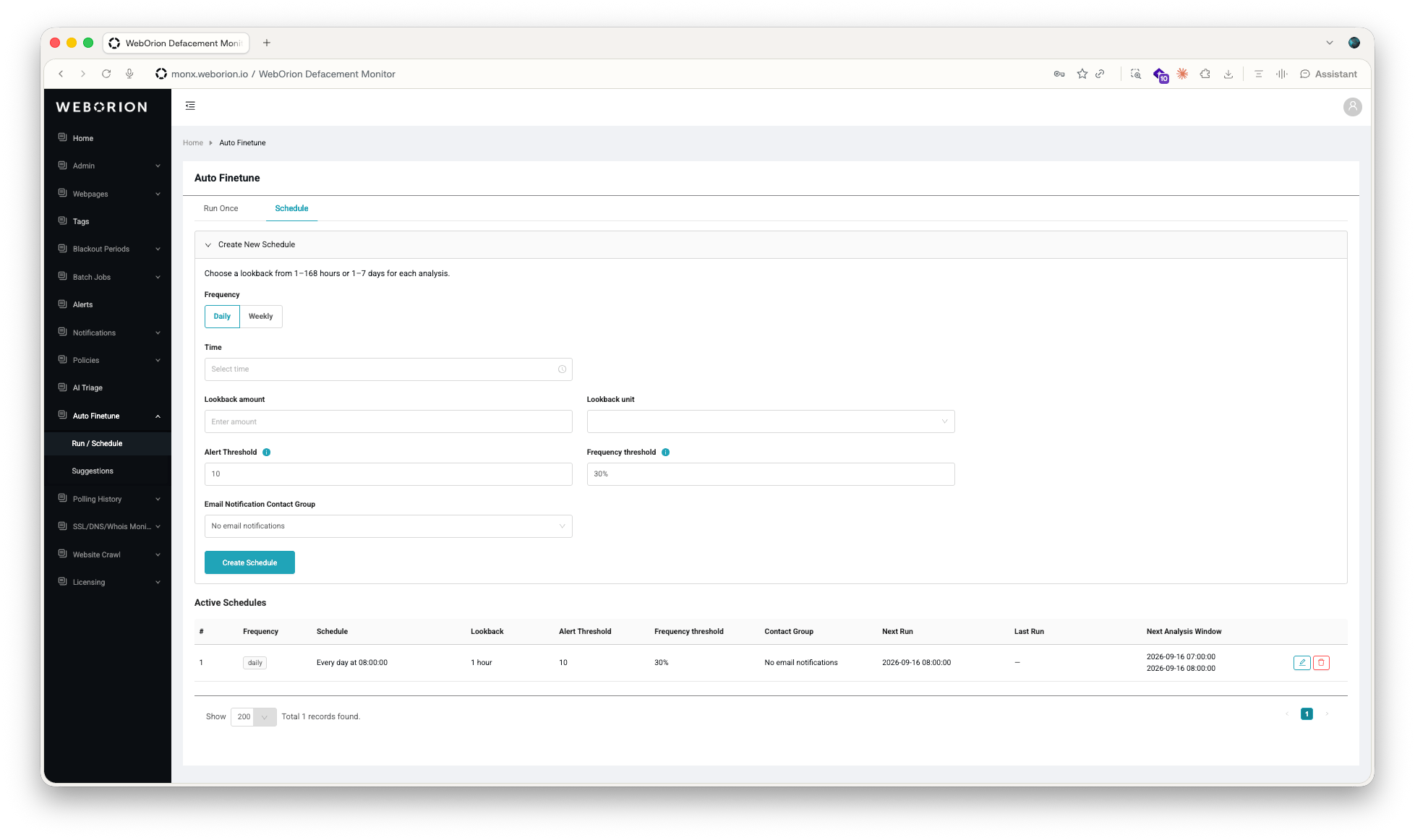 A schedule runs the analysis automatically and creates a new suggestion report each time.
1. Go to **Auto Finetune → Run / Schedule** and select the **Schedule** tab.
2. Under **Create New Schedule**, select a **Frequency**: **Daily** or **Weekly**. For a weekly schedule, also select the **Day of Week**.
3. Set the **Time** at which the analysis runs.
4. Enter the **Lookback amount** and select the **Lookback unit**: from 1 to 168 hours, or from 1 to 7 days. Each run analyzes the period that ends at the run time and starts that far back. For example, a daily schedule with a lookback of 24 hours analyzes the previous 24 hours.
5. Adjust the **Alert Threshold**, **Frequency threshold**, and **Email Notification Contact Group**.
6. Click **Create Schedule**.
The schedule appears under **Active Schedules**, together with its **Next Run**, **Last Run**, and **Next Analysis Window**. To change a schedule, click the pencil icon, edit the fields, and click **Save**. To remove a schedule, click the trash icon and confirm with **Yes**.
## Review a suggestion report
Go to **Auto Finetune → Suggestions** to see every analysis run, one-time and scheduled, with its **Job ID**, **Status**, **Analysis window**, and **Created** and **Completed** times. You can search by job ID, filter by date range, and filter by status.
| Status | Meaning |
| - | - |
| **Pending** | The job is queued. |
| **Dispatching** | The job is being handed to the analysis service. |
| **Processing** | WebOrion is analyzing the alerts in the window. |
| **Completed** | The report is ready to review. |
| **Failed** | No report was produced. Run the analysis again. If it fails repeatedly, contact [Customer Support](/defacement-monitor/getting-support/customer-support). |
The list refreshes automatically while jobs are in progress. Click a **Job ID**, or click **⋮ → View Detail**, to open the report.
To remove reports you no longer need, click **⋮ → Delete** on a row, or select several rows and click **Delete Selected**. You can delete up to 50 reports at a time, and only reports with the **Completed** or **Failed** status. Deleting a report doesn't undo changes you already applied from it.
### Report summary
A schedule runs the analysis automatically and creates a new suggestion report each time.
1. Go to **Auto Finetune → Run / Schedule** and select the **Schedule** tab.
2. Under **Create New Schedule**, select a **Frequency**: **Daily** or **Weekly**. For a weekly schedule, also select the **Day of Week**.
3. Set the **Time** at which the analysis runs.
4. Enter the **Lookback amount** and select the **Lookback unit**: from 1 to 168 hours, or from 1 to 7 days. Each run analyzes the period that ends at the run time and starts that far back. For example, a daily schedule with a lookback of 24 hours analyzes the previous 24 hours.
5. Adjust the **Alert Threshold**, **Frequency threshold**, and **Email Notification Contact Group**.
6. Click **Create Schedule**.
The schedule appears under **Active Schedules**, together with its **Next Run**, **Last Run**, and **Next Analysis Window**. To change a schedule, click the pencil icon, edit the fields, and click **Save**. To remove a schedule, click the trash icon and confirm with **Yes**.
## Review a suggestion report
Go to **Auto Finetune → Suggestions** to see every analysis run, one-time and scheduled, with its **Job ID**, **Status**, **Analysis window**, and **Created** and **Completed** times. You can search by job ID, filter by date range, and filter by status.
| Status | Meaning |
| - | - |
| **Pending** | The job is queued. |
| **Dispatching** | The job is being handed to the analysis service. |
| **Processing** | WebOrion is analyzing the alerts in the window. |
| **Completed** | The report is ready to review. |
| **Failed** | No report was produced. Run the analysis again. If it fails repeatedly, contact [Customer Support](/defacement-monitor/getting-support/customer-support). |
The list refreshes automatically while jobs are in progress. Click a **Job ID**, or click **⋮ → View Detail**, to open the report.
To remove reports you no longer need, click **⋮ → Delete** on a row, or select several rows and click **Delete Selected**. You can delete up to 50 reports at a time, and only reports with the **Completed** or **Failed** status. Deleting a report doesn't undo changes you already applied from it.
### Report summary
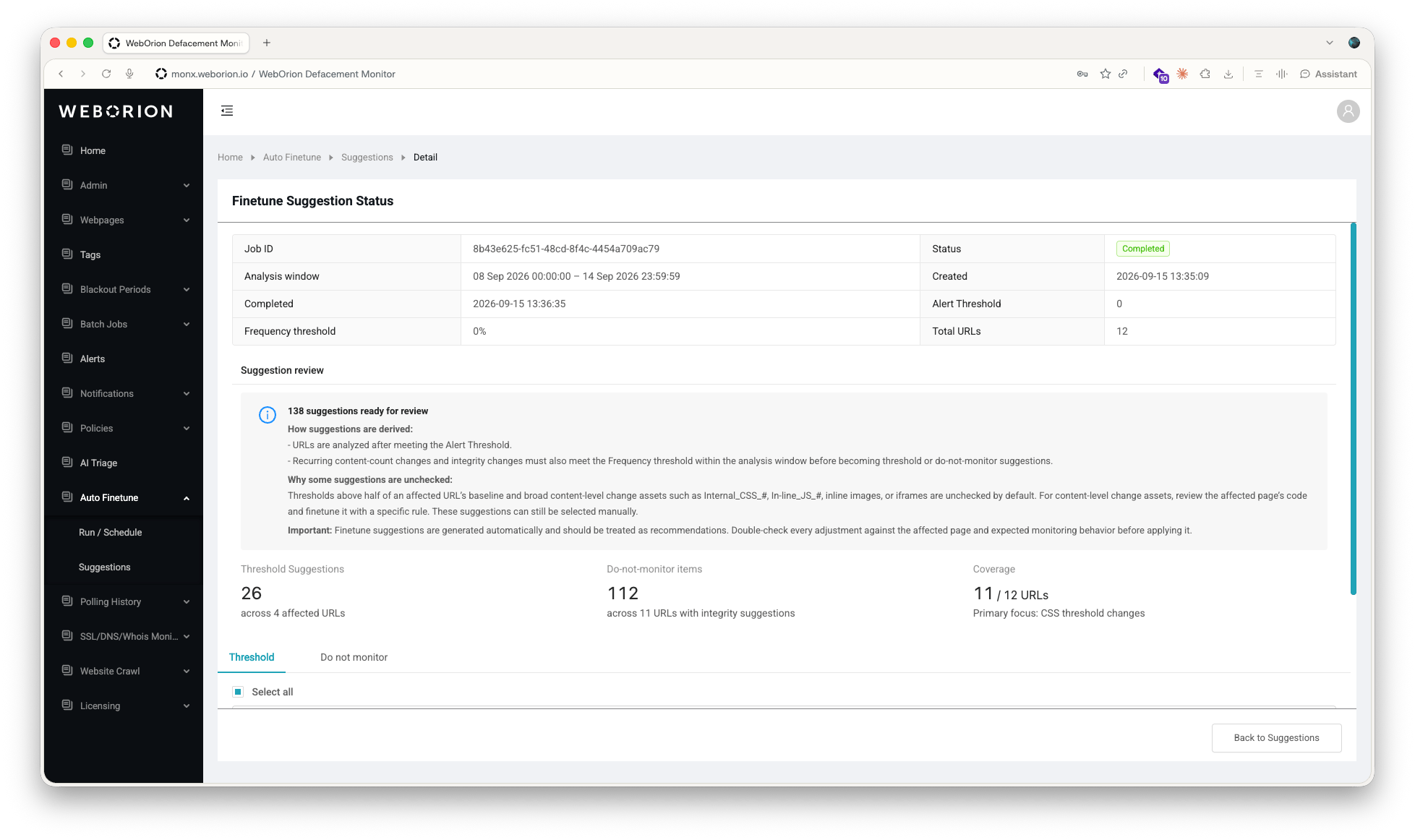 The report header shows the job's settings and outcome: the analysis window, the **Alert Threshold** and **Frequency threshold** used, and **Total URLs**, the number of webpages that met the Alert Threshold and were analyzed.
The **Suggestion review** card summarizes what was found:
* **Threshold Suggestions** — the number of threshold changes suggested and the number of webpages they affect.
* **Do-not-monitor items** — the number of policy rules suggested and the number of webpages they cover.
* **Coverage** — how many of the analyzed webpages received at least one suggestion.
Below the summary are two tabs, **Threshold** and **Do not monitor**, where you review and apply the suggestions.
### Why some suggestions start unchecked
Auto Finetune pre-selects the suggestions that are safe to apply as they are, and leaves the rest unchecked. You can still select an unchecked suggestion manually.
| Unchecked by default | Why |
| - | - |
| A threshold higher than half of the webpage's baseline value | A range that wide lets large changes pass unnoticed. A change of that size usually means the page was updated legitimately, so consider [re-baselining](/defacement-monitor/managing-changes/re-baselining) the webpage instead. |
| Broad content-level rules, such as `Internal_CSS_#`, `In-line_JS_#`, inline images, or iframes | Excluding a whole inline script or stylesheet stops monitoring a large part of the page. Review the page's code and write a rule with a specific keyword instead. See [Choosing a good keyword](/defacement-monitor/configuring-monitoring/reducing-false-positives#creating-or-editing-a-policy-rule). |
## Apply threshold suggestions
The report header shows the job's settings and outcome: the analysis window, the **Alert Threshold** and **Frequency threshold** used, and **Total URLs**, the number of webpages that met the Alert Threshold and were analyzed.
The **Suggestion review** card summarizes what was found:
* **Threshold Suggestions** — the number of threshold changes suggested and the number of webpages they affect.
* **Do-not-monitor items** — the number of policy rules suggested and the number of webpages they cover.
* **Coverage** — how many of the analyzed webpages received at least one suggestion.
Below the summary are two tabs, **Threshold** and **Do not monitor**, where you review and apply the suggestions.
### Why some suggestions start unchecked
Auto Finetune pre-selects the suggestions that are safe to apply as they are, and leaves the rest unchecked. You can still select an unchecked suggestion manually.
| Unchecked by default | Why |
| - | - |
| A threshold higher than half of the webpage's baseline value | A range that wide lets large changes pass unnoticed. A change of that size usually means the page was updated legitimately, so consider [re-baselining](/defacement-monitor/managing-changes/re-baselining) the webpage instead. |
| Broad content-level rules, such as `Internal_CSS_#`, `In-line_JS_#`, inline images, or iframes | Excluding a whole inline script or stylesheet stops monitoring a large part of the page. Review the page's code and write a rule with a specific keyword instead. See [Choosing a good keyword](/defacement-monitor/configuring-monitoring/reducing-false-positives#creating-or-editing-a-policy-rule). |
## Apply threshold suggestions
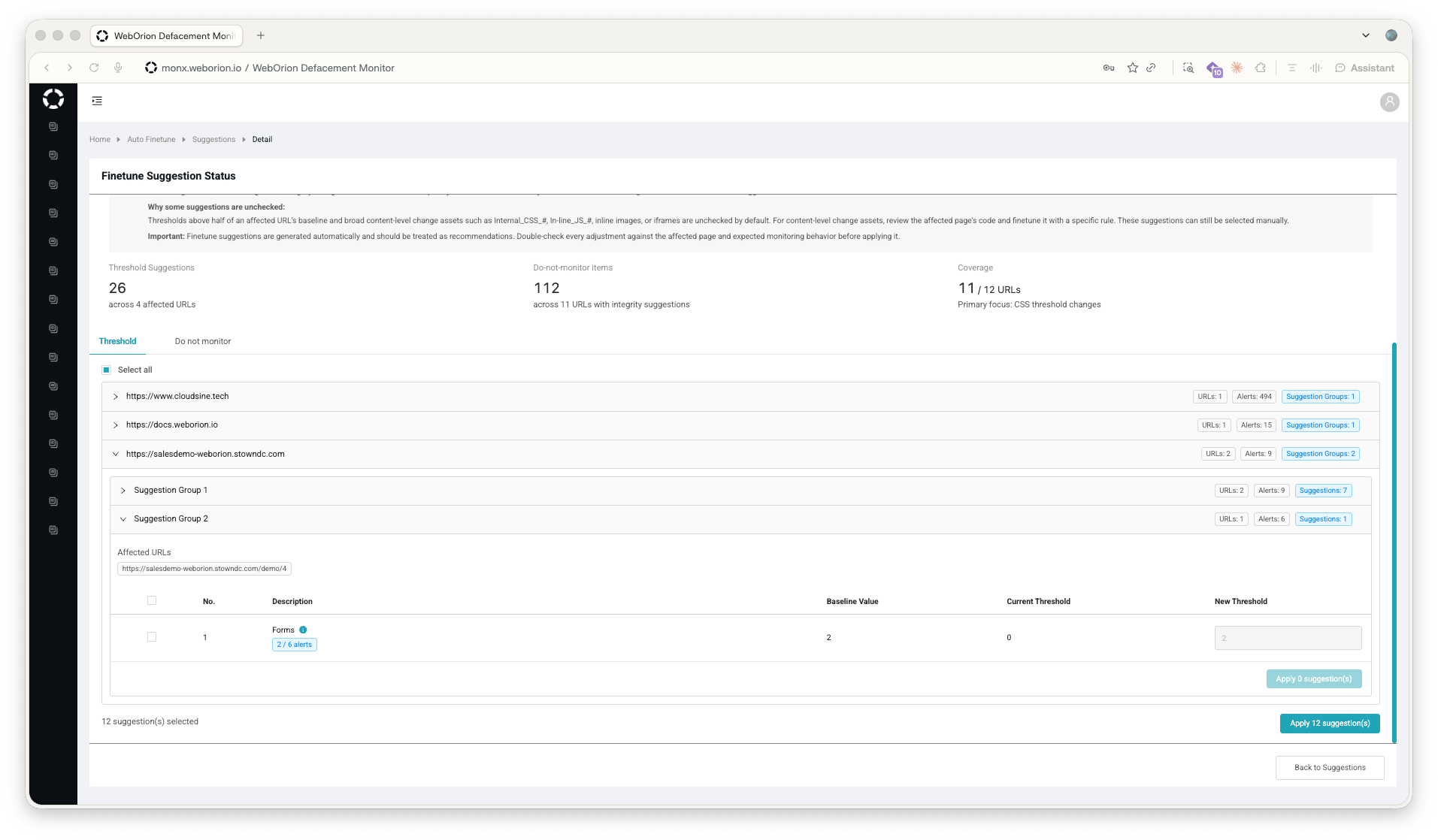 On the **Threshold** tab, suggestions are grouped by domain. Within a domain, webpages that share the same suggestions are grouped into **Suggestion Group 1**, **Suggestion Group 2**, and so on. Each group lists its **Affected URLs** and a table of suggestions:
| Column | Description |
| - | - |
| **Description** | The tracked element, for example **Href Links** or **# of HTML Lines**. The blue tag shows in how many of the webpage's alerts this change appeared, for example `8 / 12 alerts`. |
| **Baseline Value** | The element's count in the current baseline. |
| **Current Threshold** | The threshold currently set on the webpage. |
| **New Threshold** | The suggested threshold. Edit the value if you want a different one. |
To apply threshold suggestions:
1. Expand a domain, then expand a suggestion group.
2. Check the rows you want to apply and uncheck the rest. Use **Select all** at the top of the tab to select every suggestion in the report.
3. Optionally, change the **New Threshold** value of a row.
4. Click **Apply N suggestion(s)** within the group to apply that group only, or click the same button at the bottom of the tab to apply every selected suggestion in the report.
5. Click **Apply** to confirm.
WebOrion sets each affected webpage's threshold to the **New Threshold** value, replacing the current value. Webpages that are archived, or where that element's check or the Content Engine is turned off, are skipped and listed in the confirmation message.
### Apply thresholds to related webpages
When a group has at least one selected suggestion, an **Apply to related URLs** panel appears below it. Use it to extend the selected values to other webpages as minimum thresholds:
* **Apply to domain** applies the values to every webpage on the same domain. A leading `www.` is ignored when matching.
* **Apply to tag** applies the values to every webpage with the selected tag. If the affected webpages have several tags, choose one from the list first.
Minimum thresholds only raise values. A webpage whose threshold is already at or above the selected value is left unchanged.
Every applied threshold is recorded in the Activity Log with its old and new value for each webpage. Look for entries that start with "Auto-finetuned".
## Apply do-not-monitor suggestions
On the **Threshold** tab, suggestions are grouped by domain. Within a domain, webpages that share the same suggestions are grouped into **Suggestion Group 1**, **Suggestion Group 2**, and so on. Each group lists its **Affected URLs** and a table of suggestions:
| Column | Description |
| - | - |
| **Description** | The tracked element, for example **Href Links** or **# of HTML Lines**. The blue tag shows in how many of the webpage's alerts this change appeared, for example `8 / 12 alerts`. |
| **Baseline Value** | The element's count in the current baseline. |
| **Current Threshold** | The threshold currently set on the webpage. |
| **New Threshold** | The suggested threshold. Edit the value if you want a different one. |
To apply threshold suggestions:
1. Expand a domain, then expand a suggestion group.
2. Check the rows you want to apply and uncheck the rest. Use **Select all** at the top of the tab to select every suggestion in the report.
3. Optionally, change the **New Threshold** value of a row.
4. Click **Apply N suggestion(s)** within the group to apply that group only, or click the same button at the bottom of the tab to apply every selected suggestion in the report.
5. Click **Apply** to confirm.
WebOrion sets each affected webpage's threshold to the **New Threshold** value, replacing the current value. Webpages that are archived, or where that element's check or the Content Engine is turned off, are skipped and listed in the confirmation message.
### Apply thresholds to related webpages
When a group has at least one selected suggestion, an **Apply to related URLs** panel appears below it. Use it to extend the selected values to other webpages as minimum thresholds:
* **Apply to domain** applies the values to every webpage on the same domain. A leading `www.` is ignored when matching.
* **Apply to tag** applies the values to every webpage with the selected tag. If the affected webpages have several tags, choose one from the list first.
Minimum thresholds only raise values. A webpage whose threshold is already at or above the selected value is left unchanged.
Every applied threshold is recorded in the Activity Log with its old and new value for each webpage. Look for entries that start with "Auto-finetuned".
## Apply do-not-monitor suggestions
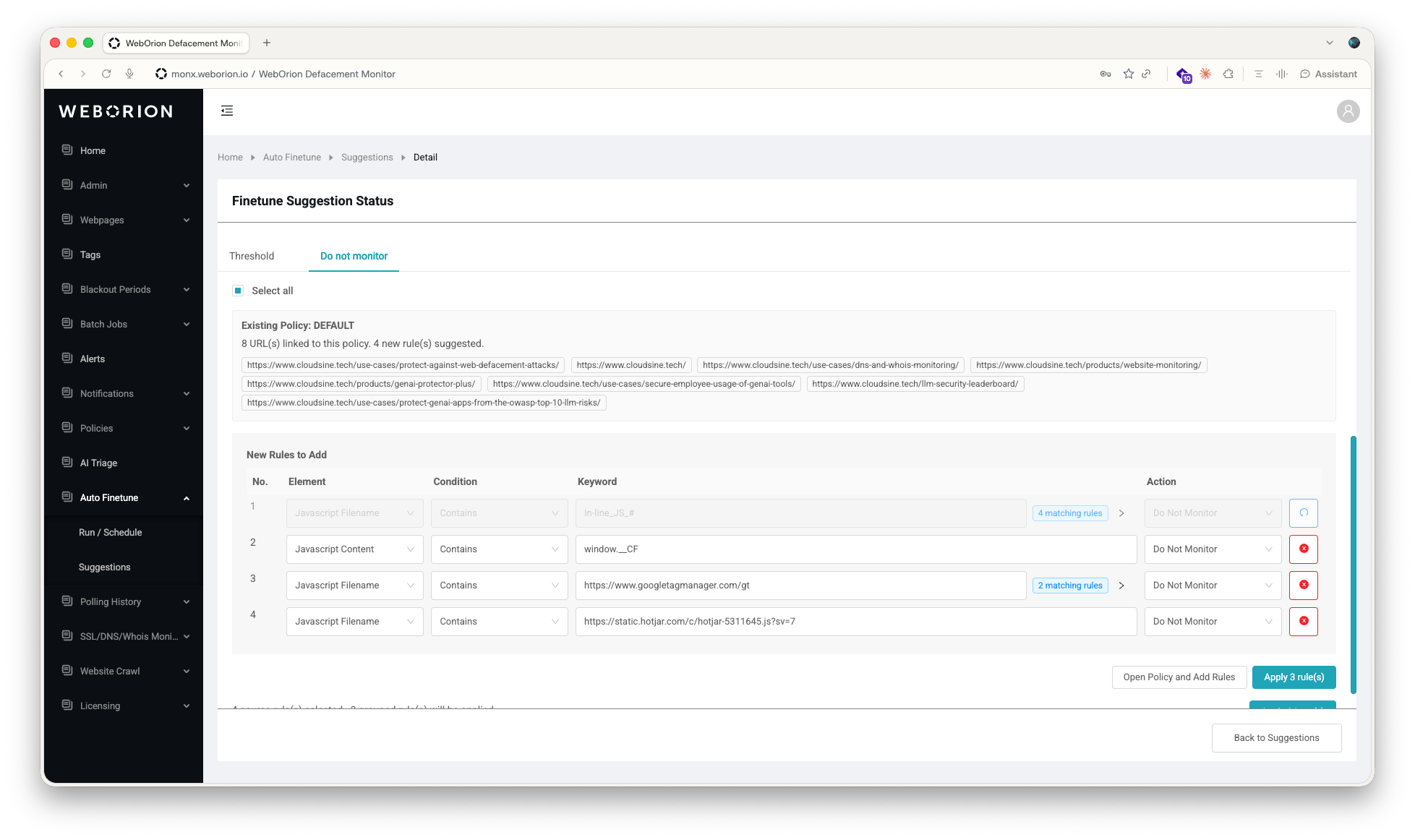 The **Do not monitor** tab turns recurring integrity changes into policy rules. Because each webpage can have only one policy, suggestions are grouped by policy:
* **Policy *name* (N)** — webpages that already have a policy. Only rules that the policy doesn't contain yet are listed, under **New Rules to Add**.
* **New policy (N URLs)** — webpages without a policy. The rules are listed under **Rule List**.
Each rule has an **Element**, **Condition**, **Keyword**, and **Action**, the same fields as a rule you add manually. Rules whose keywords share a common prefix are collapsed into a single row labeled **N matching rules**. Edit the keyword on that row to apply one broader keyword to every rule in the group, or expand the row to see the individual elements and the code snippets where they occurred.
To apply do-not-monitor suggestions:
1. Select the tab of the policy you want to update.
2. Review the rules. Click the remove icon on a row to drop it from the selection, or the undo icon to restore it. Edit the **Keyword** where a more specific or more general match is appropriate. Use **Select all** at the top of the tab to select every rule in the report.
3. Apply the rules:
* For an existing policy, click **Apply N rule(s)** to add the selected rules to the policy immediately, then click **Apply** to confirm. The policy's existing rules, webpages, and settings are preserved. To review the policy before saving, click **Open Policy and Add Rules** instead: the policy editor opens in a new tab with the rules added, and you click **Save** there.
* For webpages without a policy, click **Create Policy with Suggested Rules**. The **Add Policy** page opens with the rules and the affected webpages pre-filled. Enter a policy name and click **Save**.
To add the selected rules to all existing policies in the report at once, click **Apply N item(s)** at the bottom of the tab. New policies are always created through the **Add Policy** page.
## Finetune from a single alert
The **Do not monitor** tab turns recurring integrity changes into policy rules. Because each webpage can have only one policy, suggestions are grouped by policy:
* **Policy *name* (N)** — webpages that already have a policy. Only rules that the policy doesn't contain yet are listed, under **New Rules to Add**.
* **New policy (N URLs)** — webpages without a policy. The rules are listed under **Rule List**.
Each rule has an **Element**, **Condition**, **Keyword**, and **Action**, the same fields as a rule you add manually. Rules whose keywords share a common prefix are collapsed into a single row labeled **N matching rules**. Edit the keyword on that row to apply one broader keyword to every rule in the group, or expand the row to see the individual elements and the code snippets where they occurred.
To apply do-not-monitor suggestions:
1. Select the tab of the policy you want to update.
2. Review the rules. Click the remove icon on a row to drop it from the selection, or the undo icon to restore it. Edit the **Keyword** where a more specific or more general match is appropriate. Use **Select all** at the top of the tab to select every rule in the report.
3. Apply the rules:
* For an existing policy, click **Apply N rule(s)** to add the selected rules to the policy immediately, then click **Apply** to confirm. The policy's existing rules, webpages, and settings are preserved. To review the policy before saving, click **Open Policy and Add Rules** instead: the policy editor opens in a new tab with the rules added, and you click **Save** there.
* For webpages without a policy, click **Create Policy with Suggested Rules**. The **Add Policy** page opens with the rules and the affected webpages pre-filled. Enter a policy name and click **Save**.
To add the selected rules to all existing policies in the report at once, click **Apply N item(s)** at the bottom of the tab. New policies are always created through the **Add Policy** page.
## Finetune from a single alert
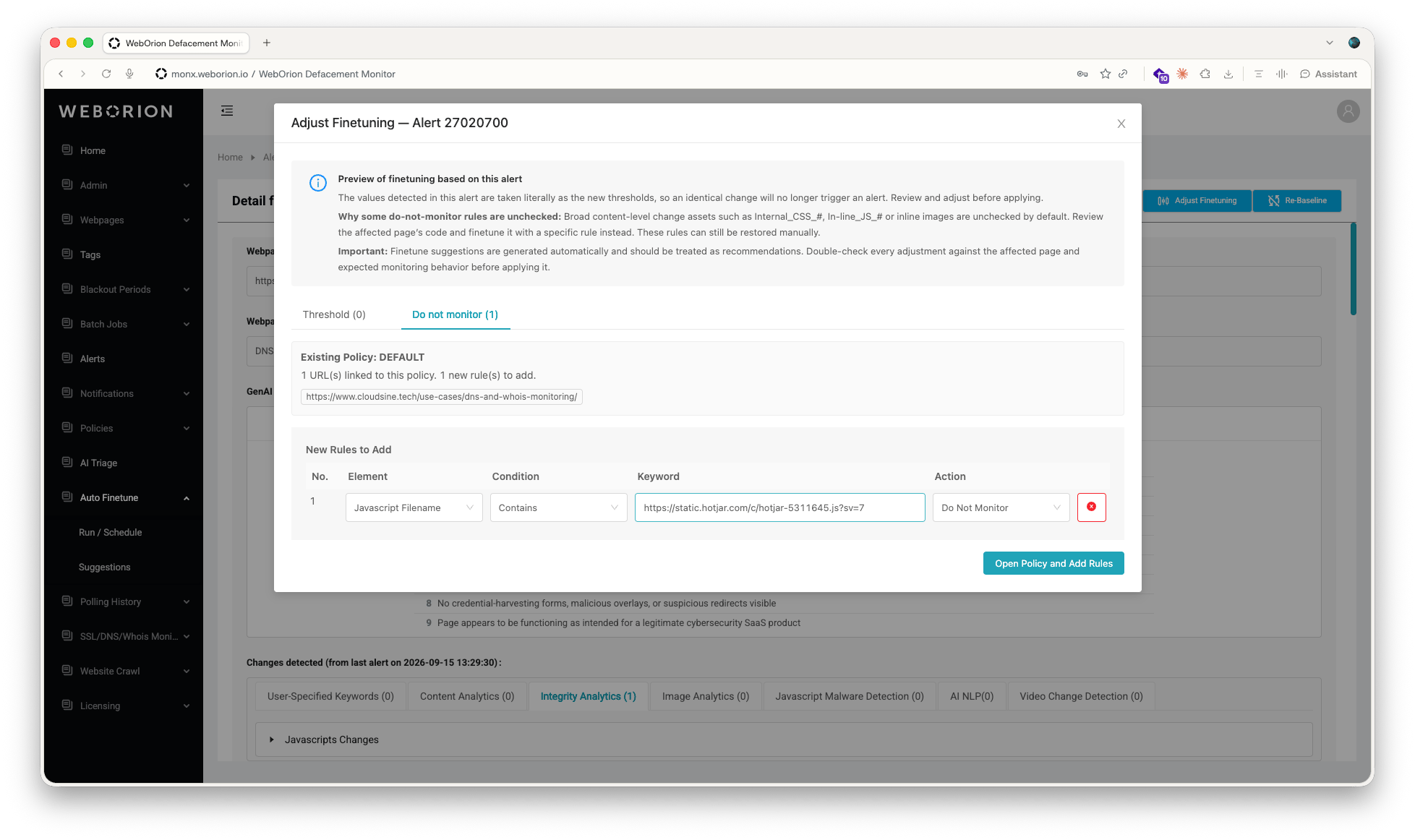 You can also generate suggestions from one alert, without running an analysis.
1. Go to **Alerts** and open the alert.
2. Click **Adjust Finetuning**.
The **Adjust Finetuning** dialog shows two tabs based on the changes detected in that alert:
* **Threshold** lists the element counts that changed. The **Alert Value**, the change detected in this alert, is used as the **New Threshold**, so an identical change no longer triggers an alert. Select the rows to apply and click **Apply N threshold(s)**. The **Apply to related URLs** panel works the same way as in a report.
* **Do not monitor** lists the integrity elements that changed, as rules for the webpage's policy or for a new policy. Review the rules, then click **Open Policy and Add Rules** or **Create Policy with Suggested Rules**.
A practical routine: create a weekly schedule with a 7-day lookback and an email notification to your team, review the report when it arrives, apply the pre-selected suggestions, and re-baseline any webpage whose suggestions were left unchecked because they exceeded half of the baseline value.
This documentation is built and hosted on [Mintlify](https://mintlify.com), a developer documentation platform.
You can also generate suggestions from one alert, without running an analysis.
1. Go to **Alerts** and open the alert.
2. Click **Adjust Finetuning**.
The **Adjust Finetuning** dialog shows two tabs based on the changes detected in that alert:
* **Threshold** lists the element counts that changed. The **Alert Value**, the change detected in this alert, is used as the **New Threshold**, so an identical change no longer triggers an alert. Select the rows to apply and click **Apply N threshold(s)**. The **Apply to related URLs** panel works the same way as in a report.
* **Do not monitor** lists the integrity elements that changed, as rules for the webpage's policy or for a new policy. Review the rules, then click **Open Policy and Add Rules** or **Create Policy with Suggested Rules**.
A practical routine: create a weekly schedule with a 7-day lookback and an email notification to your team, review the report when it arrives, apply the pre-selected suggestions, and re-baseline any webpage whose suggestions were left unchecked because they exceeded half of the baseline value.
This documentation is built and hosted on [Mintlify](https://mintlify.com), a developer documentation platform.