> ## Documentation Index
> Fetch the complete documentation index at: https://docs.weborion.io/llms.txt
> Use this file to discover all available pages before exploring further.
# Reducing False Positives
> Diagnose common false positive alert scenarios and tune WebOrion's monitoring to stop them.
WebOrion's default monitoring settings are deliberately sensitive. If your webpage has dynamic content, you'll receive some false positive alerts when you first set up monitoring. This is expected — the goal is to identify what's causing them and progressively tune the settings until only genuine defacement alerts remain.
This page covers false positive scenarios only. If you suspect an alert may be a genuine defacement, do not dismiss it without investigation.
## Quick reference
| Scenario | Fix |
| -------------------------------------------------------------- | ------------------------------------------------------------------------------------ |
| A legitimate one-time change was made to the page | [Re-baseline the webpage](#scenario-1-one-time-legitimate-change) |
| The same element (script/CSS/link) keeps triggering alerts | [Add a policy exclusion rule](#scenario-2-repeated-alerts-for-the-same-element) |
| An element count fluctuates up and down by a consistent amount | [Set a threshold](#scenario-3-repeated-alerts-for-element-count-changes) |
| HTML title or Full Page Signature keeps changing | [Disable those checks](#scenario-4-html-title-or-full-page-signature-keeps-changing) |
| Images triggering alerts due to CDN compression | [Enable Smart Image Hash](#scenario-5-images-triggering-alerts) |
***
## Scenario 1: One-time legitimate change
**Description:** The webmaster updated the page — a new article, a job posting, an updated banner. The page has changed enough from the baseline to trigger an alert.
**How to identify:** Open the alert and look at the changes detected. If the changes look intentional and expected (e.g. new links on a careers page, a new headline), click **View Comparison of Differences** on the alert details page to see the actual HTML/CSS/JS diff. If the diff confirms an expected change, the alert is a false positive.
**Fix:** Re-baseline the webpage. This updates the baseline to the current state of the page. Re-baselining also runs an intelligent baseline process that detects elements which change on every page load, automatically excluding them from future monitoring.
See [Re-baselining Webpages](/defacement-monitor/managing-changes/re-baselining) for steps.
***
## Scenario 2: Repeated alerts for the same element
**Description:** Some elements change regularly — hourly or daily — due to tracker scripts, session IDs, or rotating ad content. WebOrion's intelligent baselining looks at the page over three requests across roughly one minute, so elements that change less frequently than that won't be automatically excluded.
**How to identify:** Look at multiple alerts for the same webpage. If the alerts repeatedly flag the same script, CSS file, image, or link, this is the likely scenario. Click **View Comparison of Differences** on those alerts — you'll often see a dynamic ID or token embedded in the element that changes each time.
If the same element appears across multiple pages on the same site, check whether each page is being alerted repeatedly (this scenario) rather than each page being alerted just once (which would be Scenario 1 repeated across multiple pages).
**Fix:** Add an exclusion rule to a policy. Each webpage can only have one policy assigned to it — so if one already exists, add a new rule to that policy rather than creating a separate one.
### Checking if a policy is already assigned
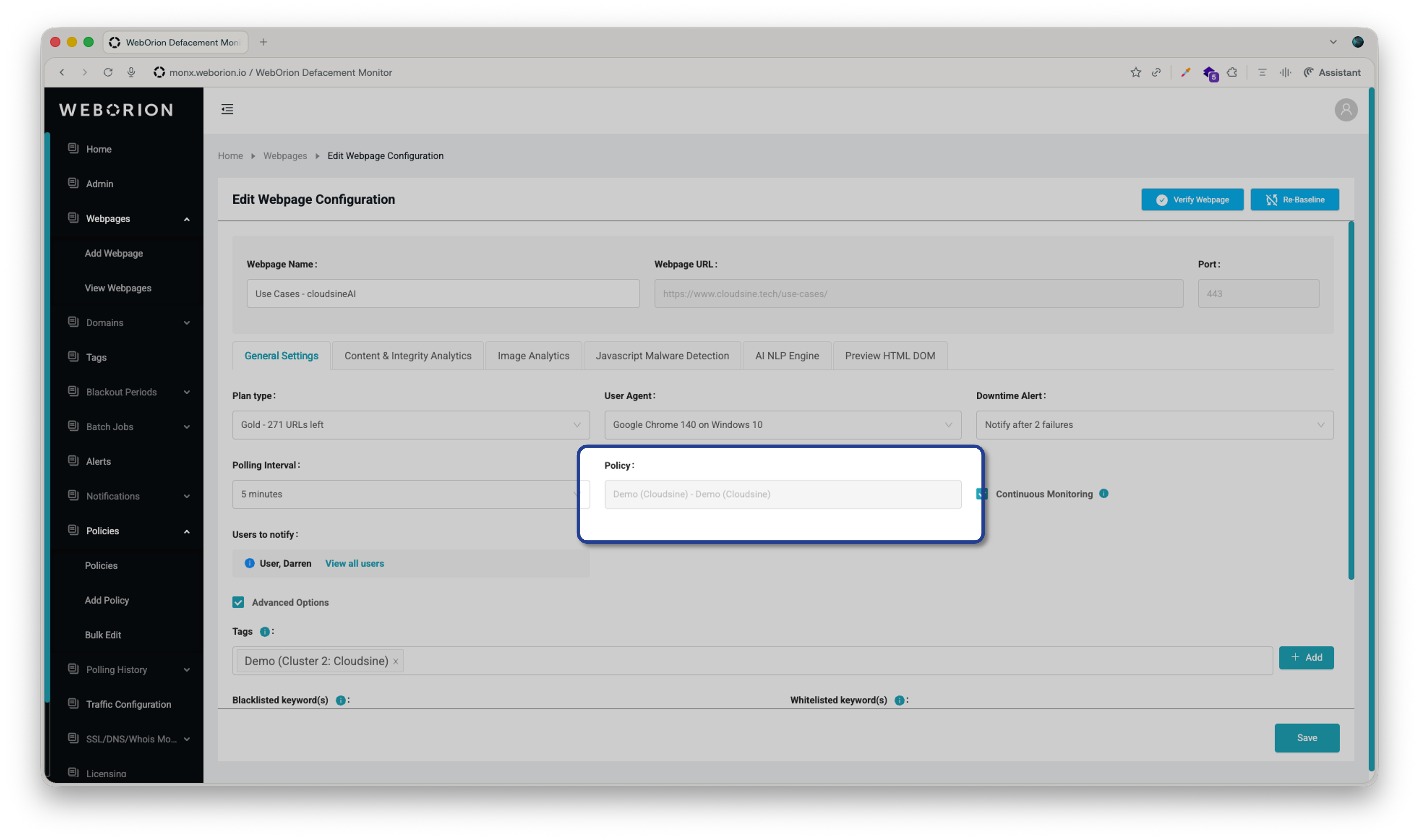 Go to **Webpage → View Webpages → ⋮ → Configuration → General Settings** and look at the **Policy** field. An empty box means no policy is assigned. If a policy name is shown, find and edit that existing policy.
### Creating or editing a policy rule
1. Go to **Policies → Add Policy** (or open the existing policy to edit it)
2. Under **Rule List**, click **Add New Rule** and configure the following:
| Field | Description |
| ------------- | ------------------------------------------------------- |
| **Element** | The type of element to target — see element types below |
| **Condition** | How to match — `Contains` is recommended for most cases |
| **Keyword** | A string that uniquely identifies the element |
| **Action** | Set to `Do Not Monitor` |
**Available element types:**
* `HREF` — href links, matched on the URL of the link
* `Image Filename` — images, matched on filename/path
* `Javascript Filename` — scripts, matched on filename/path (use `Inline_JS_#X` for inline scripts)
* `Stylesheet Filename` — stylesheets, matched on filename/path (use `In-line_CSS_#X` for inline styles)
* `Javascript Content` — scripts, matched on text content inside the script
* `Stylesheet Content` — stylesheets, matched on text content inside the stylesheet
**Choosing a good keyword:** The keyword needs to be specific enough that it won't accidentally match other elements you want to keep monitoring, but general enough that it will continue to match in the future. For example, if a script contains a `RequestId=` parameter that changes each load, use `RequestId=` as the keyword — not `RequestId=3654`, which may stop matching when the ID value changes.
3. Click **Add New Rule** again if you need additional rules on the same policy
4. In the URL selector, move any pages this policy should apply to into the **Selected URLs** box
5. Click **Save**
Policies can be applied to multiple URLs at once — if the same tracker script appears across many pages, one policy rule covers all of them.
***
## Scenario 3: Repeated alerts for element count changes
**Description:** The Content Engine tracks the count of each element type on the page — links, images, scripts, stylesheets, iframes, divisions, and HTML lines. If your page dynamically adds or removes elements (e.g. a sidebar that loads rotating links), those count changes will trigger alerts.
**How to identify:** Look at multiple alerts for the same webpage. If the count of a particular element increases and decreases by a similar number repeatedly (e.g. HTML lines: +3 in one alert, -3 in the next, +3 after that), this is the likely scenario.
If the count changes by more than roughly 20%, it may not be a false positive — it could indicate the server is sometimes returning an error page instead of the normal page.
**Fix:** Set a threshold for the specific element that's alerting. A threshold defines an acceptable ± buffer around the baseline count — counts within that range will not trigger an alert.
For example: if HTML line count fluctuates between 92 and 98, set Baseline = 95, Threshold = 3. The acceptable range becomes 95 ± 3 = 92–98.
### Setting a threshold
1. Go to **Webpage → View Webpages**
2. Click **⋮ → Configuration** on the relevant webpage
3. Select the **Content & Integrity Analytics** tab
4. Enter the acceptable variance in the **Threshold** column for the relevant element
5. Click **Save**
Keep threshold values small. Overly large thresholds reduce detection sensitivity and may cause genuine defacement alerts to be missed.
In most cases, leave the Baseline Value unchanged and only adjust the Threshold. If many webpages share the same issue, contact support — thresholds can be updated in bulk.
***
## Scenario 4: HTML title or Full Page Signature keeps changing
**Description:** Some pages have dynamically generated titles, or embed timestamps and session IDs directly in the HTML source. The Content Engine detects both:
* **HTML Title** — the page title extracted from the HTML, shown in the browser tab
* **Full Page Signature** — a hash of the entire HTML source; any single character change triggers an alert. This is especially common on modern pages that are not fully static.
**How to identify:** Look at multiple alerts for the same webpage. If the HTML Title or Full Page Signature value keeps changing between alerts, this is the scenario.
**Fix:** Disable the relevant check for that page.
1. Go to **Webpage → View Webpages**
2. Click **⋮ → Configuration** on the relevant webpage
3. Select the **Content & Integrity Analytics** tab
4. Uncheck the checkbox to the left of **HTML Title** or **Full Page Signature** as appropriate
5. Click **Save**
If many webpages share the same issue, contact support — these settings can be updated in bulk.
***
## Scenario 5: Images triggering alerts
**Description:** Images served through Content Delivery Networks (CDNs) are often recompressed or re-encoded on the fly. This changes the file signature even though the image itself hasn't meaningfully changed, causing false positive alerts.
**Fix:** Enable Smart Image Hash (SIH). Instead of comparing file signatures directly, SIH scores the visual similarity between the baseline image and the current version on a scale of 0 to 100.
| Score | Meaning |
| --------- | --------------------------------------------------------- |
| **0** | Identical |
| **1–10** | Essentially the same (e.g. minor compression differences) |
| **11–99** | Noticeable differences |
| **100** | Completely different |
The default alert threshold is **10** — images scoring 10 or below will not trigger an alert.
### Enabling SIH
1. Go to **Webpage → View Webpages**
2. Click **⋮ → Configuration** on the relevant webpage
3. Select the **Content & Integrity Analytics** tab
4. Click **Images → Smart Image Hash**
5. Toggle the switch to enable SIH
6. Drag the sensitivity slider to set your threshold
7. Click **OK**, then **Save**
You must click the main **Save** button after closing the SIH popup — otherwise your changes won't be persisted.
SIH can also be configured at the policy level to apply across multiple URLs. URL-level settings always take priority over policy-level settings.
## Finetuning suggestions
To know where to get started, you can generate a **finetuning suggestion** directly from one of these alerts.

When you spot a low-value or recurring alert, click the **finetuning suggestion** button on the alert. WebOrion analyses the change and returns a clear suggestion for reducing similar alerts going forward — typically a rule you can add to the page's [policy](/defacement-monitor/configuring-monitoring/policies).
Go to **Webpage → View Webpages → ⋮ → Configuration → General Settings** and look at the **Policy** field. An empty box means no policy is assigned. If a policy name is shown, find and edit that existing policy.
### Creating or editing a policy rule
1. Go to **Policies → Add Policy** (or open the existing policy to edit it)
2. Under **Rule List**, click **Add New Rule** and configure the following:
| Field | Description |
| ------------- | ------------------------------------------------------- |
| **Element** | The type of element to target — see element types below |
| **Condition** | How to match — `Contains` is recommended for most cases |
| **Keyword** | A string that uniquely identifies the element |
| **Action** | Set to `Do Not Monitor` |
**Available element types:**
* `HREF` — href links, matched on the URL of the link
* `Image Filename` — images, matched on filename/path
* `Javascript Filename` — scripts, matched on filename/path (use `Inline_JS_#X` for inline scripts)
* `Stylesheet Filename` — stylesheets, matched on filename/path (use `In-line_CSS_#X` for inline styles)
* `Javascript Content` — scripts, matched on text content inside the script
* `Stylesheet Content` — stylesheets, matched on text content inside the stylesheet
**Choosing a good keyword:** The keyword needs to be specific enough that it won't accidentally match other elements you want to keep monitoring, but general enough that it will continue to match in the future. For example, if a script contains a `RequestId=` parameter that changes each load, use `RequestId=` as the keyword — not `RequestId=3654`, which may stop matching when the ID value changes.
3. Click **Add New Rule** again if you need additional rules on the same policy
4. In the URL selector, move any pages this policy should apply to into the **Selected URLs** box
5. Click **Save**
Policies can be applied to multiple URLs at once — if the same tracker script appears across many pages, one policy rule covers all of them.
***
## Scenario 3: Repeated alerts for element count changes
**Description:** The Content Engine tracks the count of each element type on the page — links, images, scripts, stylesheets, iframes, divisions, and HTML lines. If your page dynamically adds or removes elements (e.g. a sidebar that loads rotating links), those count changes will trigger alerts.
**How to identify:** Look at multiple alerts for the same webpage. If the count of a particular element increases and decreases by a similar number repeatedly (e.g. HTML lines: +3 in one alert, -3 in the next, +3 after that), this is the likely scenario.
If the count changes by more than roughly 20%, it may not be a false positive — it could indicate the server is sometimes returning an error page instead of the normal page.
**Fix:** Set a threshold for the specific element that's alerting. A threshold defines an acceptable ± buffer around the baseline count — counts within that range will not trigger an alert.
For example: if HTML line count fluctuates between 92 and 98, set Baseline = 95, Threshold = 3. The acceptable range becomes 95 ± 3 = 92–98.
### Setting a threshold
1. Go to **Webpage → View Webpages**
2. Click **⋮ → Configuration** on the relevant webpage
3. Select the **Content & Integrity Analytics** tab
4. Enter the acceptable variance in the **Threshold** column for the relevant element
5. Click **Save**
Keep threshold values small. Overly large thresholds reduce detection sensitivity and may cause genuine defacement alerts to be missed.
In most cases, leave the Baseline Value unchanged and only adjust the Threshold. If many webpages share the same issue, contact support — thresholds can be updated in bulk.
***
## Scenario 4: HTML title or Full Page Signature keeps changing
**Description:** Some pages have dynamically generated titles, or embed timestamps and session IDs directly in the HTML source. The Content Engine detects both:
* **HTML Title** — the page title extracted from the HTML, shown in the browser tab
* **Full Page Signature** — a hash of the entire HTML source; any single character change triggers an alert. This is especially common on modern pages that are not fully static.
**How to identify:** Look at multiple alerts for the same webpage. If the HTML Title or Full Page Signature value keeps changing between alerts, this is the scenario.
**Fix:** Disable the relevant check for that page.
1. Go to **Webpage → View Webpages**
2. Click **⋮ → Configuration** on the relevant webpage
3. Select the **Content & Integrity Analytics** tab
4. Uncheck the checkbox to the left of **HTML Title** or **Full Page Signature** as appropriate
5. Click **Save**
If many webpages share the same issue, contact support — these settings can be updated in bulk.
***
## Scenario 5: Images triggering alerts
**Description:** Images served through Content Delivery Networks (CDNs) are often recompressed or re-encoded on the fly. This changes the file signature even though the image itself hasn't meaningfully changed, causing false positive alerts.
**Fix:** Enable Smart Image Hash (SIH). Instead of comparing file signatures directly, SIH scores the visual similarity between the baseline image and the current version on a scale of 0 to 100.
| Score | Meaning |
| --------- | --------------------------------------------------------- |
| **0** | Identical |
| **1–10** | Essentially the same (e.g. minor compression differences) |
| **11–99** | Noticeable differences |
| **100** | Completely different |
The default alert threshold is **10** — images scoring 10 or below will not trigger an alert.
### Enabling SIH
1. Go to **Webpage → View Webpages**
2. Click **⋮ → Configuration** on the relevant webpage
3. Select the **Content & Integrity Analytics** tab
4. Click **Images → Smart Image Hash**
5. Toggle the switch to enable SIH
6. Drag the sensitivity slider to set your threshold
7. Click **OK**, then **Save**
You must click the main **Save** button after closing the SIH popup — otherwise your changes won't be persisted.
SIH can also be configured at the policy level to apply across multiple URLs. URL-level settings always take priority over policy-level settings.
## Finetuning suggestions
To know where to get started, you can generate a **finetuning suggestion** directly from one of these alerts.

When you spot a low-value or recurring alert, click the **finetuning suggestion** button on the alert. WebOrion analyses the change and returns a clear suggestion for reducing similar alerts going forward — typically a rule you can add to the page's [policy](/defacement-monitor/configuring-monitoring/policies).