> ## Documentation Index
> Fetch the complete documentation index at: https://docs.weborion.io/llms.txt
> Use this file to discover all available pages before exploring further.
# Rendering Configuration
> Control how WebOrion loads and captures your webpages before it compares them against the baseline.
Before WebOrion compares a webpage against its baseline, it loads the page and rendering configuration controls how that behaves: how long it waits for the page to load, the size of the browser window, and how it handles redirects, late-loading content, and videos.
 Adjust these settings when a capture doesn't reflect what your visitors see, or when the way a page loads causes captures to differ from one poll to the next.
Rendering configuration changes how a page is captured, not what WebOrion monitors on it. To choose which elements WebOrion tracks, see [What WebOrion Monitors](/defacement-monitor/configuring-monitoring/what-webpages-monitor).
## Quick reference
| Symptom | Setting to adjust |
| - | - |
| Captures are missing content that appears shortly after the page loads, such as search results or widgets | [**Additional delay**](#page-load) or [**Selector IDs**](#late-loading-content) |
| The page redirects to a sign-in page, and WebOrion captures the sign-in page instead of the original page | [**Redirect whitelist**](#redirects) |
| The page redirects to another page on load, and WebOrion captures it before the redirect finishes | [**Client redirect wait**](#redirects) |
| A slow page fails to load before WebOrion gives up | [**Timeout**](#page-load) |
| A playing video makes every capture look different | [**Pause videos**](#videos) |
| The captured layout doesn't match what visitors see in a desktop browser | [**Width** and **Height**](#page-load) |
## How settings are inherited
Rendering settings are layered. WebOrion resolves each setting in the following order, and each level overrides the one before it:
1. **Engine defaults**: the built-in values of the rendering engine assigned to your account.
2. **Customer**: values that apply to every webpage in your account.
3. **FQDN**: values that apply to every webpage on one domain, such as `www.example.com`.
4. **URL**: values that apply to a single webpage.
A value that you set at a level applies to that level and every level below it, unless a lower level sets its own value. Values that you don't set are inherited. For example, if you set **Timeout (ms)** to `90000` at the FQDN level, every webpage on that domain uses a 90-second timeout unless a webpage has its own URL-level value.
| Level | Applies to | Typical use |
| - | - | - |
| **Customer** | Every webpage in your account | Account-wide preferences, such as the browser window size |
| **FQDN** | Every webpage on one domain | Behavior that a whole site needs, such as a longer timeout for a slow site |
| **URL** | One webpage | Behavior that a single page needs, such as waiting for a search results container to fill |
Set a value at the highest level that applies. One value at the FQDN level is easier to maintain than the same value repeated on each webpage.
## Open rendering configuration
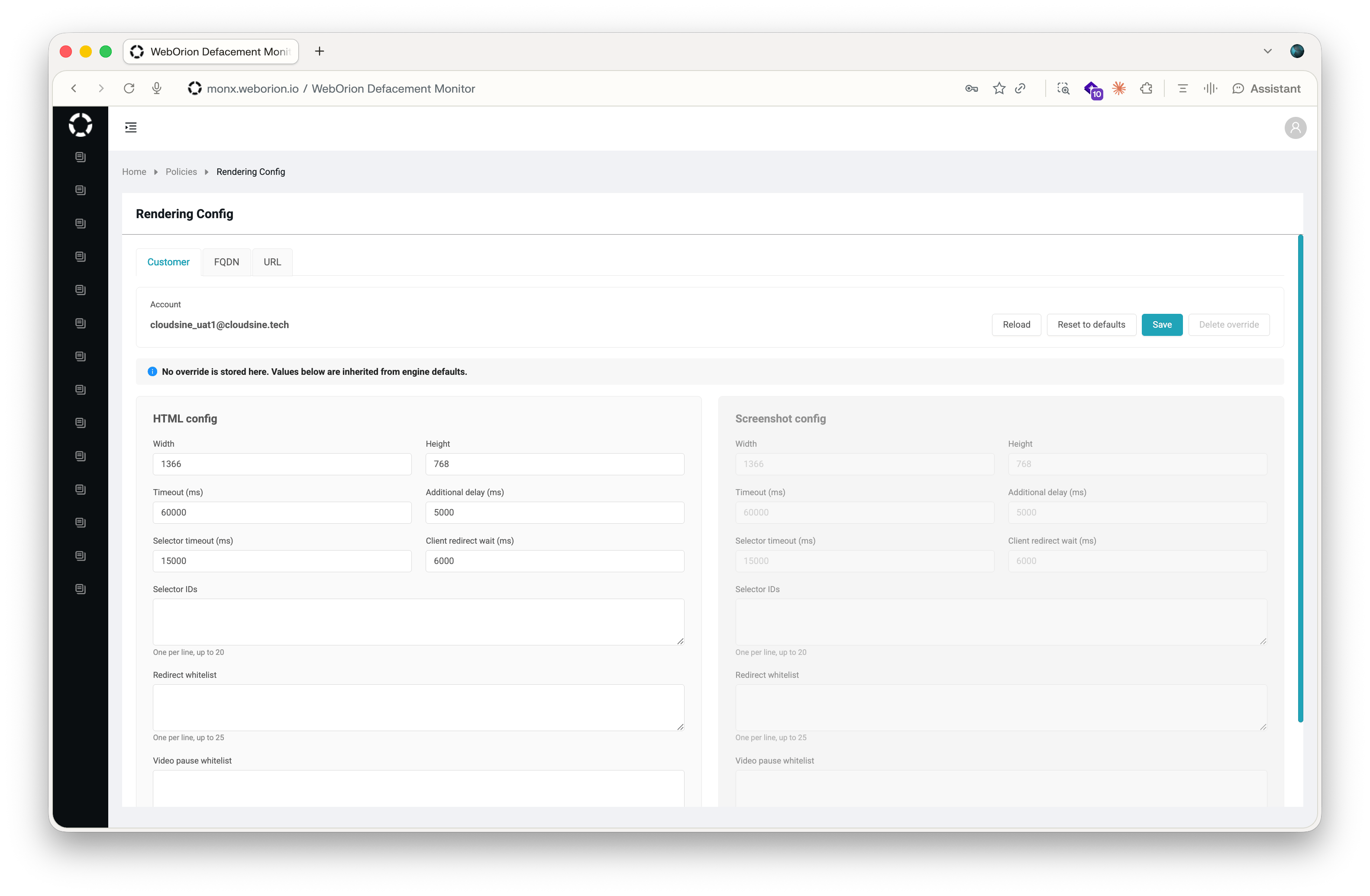
1. Go to **Policies → Rendering Config**.
2. Select the tab for the level that you want to configure: **Customer**, **FQDN**, or **URL**.
3. On the **FQDN** tab, select a domain from **Domain (FQDN)**. On the **URL** tab, select a webpage from **Webpage URL**.
To open the URL level for a specific webpage directly, go to **Webpage → View Webpages**, click **⋮ → Configuration** on the webpage, and then click **Rendering Config**.
## Understanding the configurations
Each level shows two panels:
* **HTML config**: settings that apply when WebOrion captures the page's HTML for content and integrity checks.
* **Screenshot config**: settings that apply when WebOrion captures a screenshot of the page.
When a rendering engine produces both the HTML and the screenshot, both captures use the same settings. In that case, the **Screenshot config** panel is read-only and mirrors the **HTML config** panel.
Every field shows the value that is currently in effect at the selected level, whether the value is inherited or set at that level. If nothing is stored at the level, a message above will tell you where the values are inherited from.
The fields that appear depend on the rendering engine assigned to your account. Fields that the engine doesn't use aren't shown. If a setting described on this page isn't visible to you and you wish to use it, please contact support.
## Change a setting
1. Open the level and, if needed, select a domain or webpage.
2. Enter the new value. For list fields, enter one item per line. For **True**/**False** fields, select a value from the list.
3. Click **Save**.
Only the fields that you changed are stored at this level. All other fields continue to inherit their values. Changes take effect from the next poll.
Rendering settings change how a page is captured, so the next poll might not match a baseline that was captured under the previous settings. After you change rendering settings, [re-baseline the affected webpages](/defacement-monitor/managing-changes/re-baselining) to avoid false positive alerts.
### Return a field to its inherited value
Clear the field and click **Save**. The field takes the value from the level above.
### Discard unsaved changes
Click **Reload**. The form reloads with the saved values. If you have unsaved changes, WebOrion prompts you to confirm before it discards them.
### Clear every setting at a level
* **Reset to defaults** fills the form with the values inherited from the level above and marks every field at this level to be cleared. Review the values, then click **Save** to apply them. Nothing changes until you save.
* **Delete override** immediately removes every value stored at this level. WebOrion prompts you to confirm. Afterward, the level inherits all of its values from the level above.
## Settings reference
### Page load
| Setting | Description | Values |
| - | - | - |
| **Width** | The width, in pixels, of the browser window that WebOrion loads the page in. Match the screen width that your visitors typically use so that the captured layout reflects what they see. | 1–10,000 |
| **Height** | The height, in pixels, of the browser window. Screenshots capture the full length of the page regardless of this value. | 1–10,000 |
| **Timeout (ms)** | The maximum time that WebOrion waits for the page to load. If the page doesn't load in time, the capture fails for that poll. | 1,000–120,000 |
| **Additional delay (ms)** | Extra time that WebOrion waits after the page has loaded, and after any redirect wait, before it captures. Use this for content that appears a moment after the page loads, such as widgets or animations. | 0–120,000 |
### Redirects
| Setting | Description | Values |
| - | - | - |
| **Client redirect wait (ms)** | When the page itself starts a redirect, for example with JavaScript or a `` tag, WebOrion waits up to this long for the redirect to finish and then captures the destination page. Set to `0` to capture the page without waiting. | 0–120,000 |
| **Redirect whitelist** | Redirect destinations that WebOrion doesn't follow. If the page tries to redirect to a URL that starts with one of these prefixes, WebOrion stays on the original page and captures it. Use this when a page redirects to a sign-in or single sign-on page that you don't want to monitor. | One URL prefix per line, up to 25 |
### Late-loading content
| Setting | Description | Values |
| - | - | - |
| **Selector IDs** | The HTML `id` values of elements whose content is filled in after the page loads, such as a search results container. WebOrion waits for the first listed element that exists on the page to contain content before it captures. Enter each ID without the leading `#`. | One ID per line, up to 20 |
| **Selector timeout (ms)** | How long WebOrion waits for the content inside a listed element to appear. If the content doesn't appear in time, WebOrion reloads the page once and waits again, then captures whatever has rendered. | 0–120,000 |
### Videos
| Setting | Description | Values |
| - | - | - |
| **Pause videos** | When set to **True**, WebOrion pauses every video on the page and rewinds it to its first frame before it captures. This stops a playing video from making each capture look different. | **True** or **False** |
| **Video pause whitelist** | Embedded frames (iframes) whose videos WebOrion leaves playing. If an embedded frame's URL starts with one of these prefixes, videos inside it aren't paused. Videos in the page itself are always paused when **Pause videos** is **True**. | One URL prefix per line, up to 25 |
## Example: Wait for search results to load
A search results page fills its results container with a script a few seconds after the page itself loads. Without adjustment, WebOrion sometimes captures the container before it's filled, so the baseline and later polls differ depending on timing.
1. Go to **Policies → Rendering Config** and select the **URL** tab.
2. Select the search results webpage from **Webpage URL**.
3. In **Selector IDs**, enter the `id` of the results container, for example `search-results`.
4. In **Selector timeout (ms)**, enter `15000`.
5. Click **Save**.
6. [Re-baseline the webpage](/defacement-monitor/managing-changes/re-baselining).
WebOrion now waits up to 15 seconds for the results container to fill before it captures the page.
## Example: Stay on a page that redirects to sign-in
A page redirects visitors who aren't signed in to `https://sso.example.com/login`. You want to monitor the page as it's served before the redirect.
1. Go to **Policies → Rendering Config** and select the **FQDN** tab.
2. Select the domain from **Domain (FQDN)**.
3. In **Redirect whitelist**, enter `https://sso.example.com/`.
4. Click **Save**.
5. [Re-baseline the affected webpages](/defacement-monitor/managing-changes/re-baselining).
WebOrion now stays on the original page whenever it tries to redirect to a URL under `https://sso.example.com/`.
Still seeing alerts from dynamic content after tuning rendering? See [Reducing False Positives](/defacement-monitor/configuring-monitoring/reducing-false-positives).
This documentation is built and hosted on [Mintlify](https://mintlify.com), a developer documentation platform.
Adjust these settings when a capture doesn't reflect what your visitors see, or when the way a page loads causes captures to differ from one poll to the next.
Rendering configuration changes how a page is captured, not what WebOrion monitors on it. To choose which elements WebOrion tracks, see [What WebOrion Monitors](/defacement-monitor/configuring-monitoring/what-webpages-monitor).
## Quick reference
| Symptom | Setting to adjust |
| - | - |
| Captures are missing content that appears shortly after the page loads, such as search results or widgets | [**Additional delay**](#page-load) or [**Selector IDs**](#late-loading-content) |
| The page redirects to a sign-in page, and WebOrion captures the sign-in page instead of the original page | [**Redirect whitelist**](#redirects) |
| The page redirects to another page on load, and WebOrion captures it before the redirect finishes | [**Client redirect wait**](#redirects) |
| A slow page fails to load before WebOrion gives up | [**Timeout**](#page-load) |
| A playing video makes every capture look different | [**Pause videos**](#videos) |
| The captured layout doesn't match what visitors see in a desktop browser | [**Width** and **Height**](#page-load) |
## How settings are inherited
Rendering settings are layered. WebOrion resolves each setting in the following order, and each level overrides the one before it:
1. **Engine defaults**: the built-in values of the rendering engine assigned to your account.
2. **Customer**: values that apply to every webpage in your account.
3. **FQDN**: values that apply to every webpage on one domain, such as `www.example.com`.
4. **URL**: values that apply to a single webpage.
A value that you set at a level applies to that level and every level below it, unless a lower level sets its own value. Values that you don't set are inherited. For example, if you set **Timeout (ms)** to `90000` at the FQDN level, every webpage on that domain uses a 90-second timeout unless a webpage has its own URL-level value.
| Level | Applies to | Typical use |
| - | - | - |
| **Customer** | Every webpage in your account | Account-wide preferences, such as the browser window size |
| **FQDN** | Every webpage on one domain | Behavior that a whole site needs, such as a longer timeout for a slow site |
| **URL** | One webpage | Behavior that a single page needs, such as waiting for a search results container to fill |
Set a value at the highest level that applies. One value at the FQDN level is easier to maintain than the same value repeated on each webpage.
## Open rendering configuration
1. Go to **Policies → Rendering Config**.
2. Select the tab for the level that you want to configure: **Customer**, **FQDN**, or **URL**.
3. On the **FQDN** tab, select a domain from **Domain (FQDN)**. On the **URL** tab, select a webpage from **Webpage URL**.
To open the URL level for a specific webpage directly, go to **Webpage → View Webpages**, click **⋮ → Configuration** on the webpage, and then click **Rendering Config**.
## Understanding the configurations
Each level shows two panels:
* **HTML config**: settings that apply when WebOrion captures the page's HTML for content and integrity checks.
* **Screenshot config**: settings that apply when WebOrion captures a screenshot of the page.
When a rendering engine produces both the HTML and the screenshot, both captures use the same settings. In that case, the **Screenshot config** panel is read-only and mirrors the **HTML config** panel.
Every field shows the value that is currently in effect at the selected level, whether the value is inherited or set at that level. If nothing is stored at the level, a message above will tell you where the values are inherited from.
The fields that appear depend on the rendering engine assigned to your account. Fields that the engine doesn't use aren't shown. If a setting described on this page isn't visible to you and you wish to use it, please contact support.
## Change a setting
1. Open the level and, if needed, select a domain or webpage.
2. Enter the new value. For list fields, enter one item per line. For **True**/**False** fields, select a value from the list.
3. Click **Save**.
Only the fields that you changed are stored at this level. All other fields continue to inherit their values. Changes take effect from the next poll.
Rendering settings change how a page is captured, so the next poll might not match a baseline that was captured under the previous settings. After you change rendering settings, [re-baseline the affected webpages](/defacement-monitor/managing-changes/re-baselining) to avoid false positive alerts.
### Return a field to its inherited value
Clear the field and click **Save**. The field takes the value from the level above.
### Discard unsaved changes
Click **Reload**. The form reloads with the saved values. If you have unsaved changes, WebOrion prompts you to confirm before it discards them.
### Clear every setting at a level
* **Reset to defaults** fills the form with the values inherited from the level above and marks every field at this level to be cleared. Review the values, then click **Save** to apply them. Nothing changes until you save.
* **Delete override** immediately removes every value stored at this level. WebOrion prompts you to confirm. Afterward, the level inherits all of its values from the level above.
## Settings reference
### Page load
| Setting | Description | Values |
| - | - | - |
| **Width** | The width, in pixels, of the browser window that WebOrion loads the page in. Match the screen width that your visitors typically use so that the captured layout reflects what they see. | 1–10,000 |
| **Height** | The height, in pixels, of the browser window. Screenshots capture the full length of the page regardless of this value. | 1–10,000 |
| **Timeout (ms)** | The maximum time that WebOrion waits for the page to load. If the page doesn't load in time, the capture fails for that poll. | 1,000–120,000 |
| **Additional delay (ms)** | Extra time that WebOrion waits after the page has loaded, and after any redirect wait, before it captures. Use this for content that appears a moment after the page loads, such as widgets or animations. | 0–120,000 |
### Redirects
| Setting | Description | Values |
| - | - | - |
| **Client redirect wait (ms)** | When the page itself starts a redirect, for example with JavaScript or a `` tag, WebOrion waits up to this long for the redirect to finish and then captures the destination page. Set to `0` to capture the page without waiting. | 0–120,000 |
| **Redirect whitelist** | Redirect destinations that WebOrion doesn't follow. If the page tries to redirect to a URL that starts with one of these prefixes, WebOrion stays on the original page and captures it. Use this when a page redirects to a sign-in or single sign-on page that you don't want to monitor. | One URL prefix per line, up to 25 |
### Late-loading content
| Setting | Description | Values |
| - | - | - |
| **Selector IDs** | The HTML `id` values of elements whose content is filled in after the page loads, such as a search results container. WebOrion waits for the first listed element that exists on the page to contain content before it captures. Enter each ID without the leading `#`. | One ID per line, up to 20 |
| **Selector timeout (ms)** | How long WebOrion waits for the content inside a listed element to appear. If the content doesn't appear in time, WebOrion reloads the page once and waits again, then captures whatever has rendered. | 0–120,000 |
### Videos
| Setting | Description | Values |
| - | - | - |
| **Pause videos** | When set to **True**, WebOrion pauses every video on the page and rewinds it to its first frame before it captures. This stops a playing video from making each capture look different. | **True** or **False** |
| **Video pause whitelist** | Embedded frames (iframes) whose videos WebOrion leaves playing. If an embedded frame's URL starts with one of these prefixes, videos inside it aren't paused. Videos in the page itself are always paused when **Pause videos** is **True**. | One URL prefix per line, up to 25 |
## Example: Wait for search results to load
A search results page fills its results container with a script a few seconds after the page itself loads. Without adjustment, WebOrion sometimes captures the container before it's filled, so the baseline and later polls differ depending on timing.
1. Go to **Policies → Rendering Config** and select the **URL** tab.
2. Select the search results webpage from **Webpage URL**.
3. In **Selector IDs**, enter the `id` of the results container, for example `search-results`.
4. In **Selector timeout (ms)**, enter `15000`.
5. Click **Save**.
6. [Re-baseline the webpage](/defacement-monitor/managing-changes/re-baselining).
WebOrion now waits up to 15 seconds for the results container to fill before it captures the page.
## Example: Stay on a page that redirects to sign-in
A page redirects visitors who aren't signed in to `https://sso.example.com/login`. You want to monitor the page as it's served before the redirect.
1. Go to **Policies → Rendering Config** and select the **FQDN** tab.
2. Select the domain from **Domain (FQDN)**.
3. In **Redirect whitelist**, enter `https://sso.example.com/`.
4. Click **Save**.
5. [Re-baseline the affected webpages](/defacement-monitor/managing-changes/re-baselining).
WebOrion now stays on the original page whenever it tries to redirect to a URL under `https://sso.example.com/`.
Still seeing alerts from dynamic content after tuning rendering? See [Reducing False Positives](/defacement-monitor/configuring-monitoring/reducing-false-positives).
This documentation is built and hosted on [Mintlify](https://mintlify.com), a developer documentation platform.