> ## Documentation Index
> Fetch the complete documentation index at: https://docs.weborion.io/llms.txt
> Use this file to discover all available pages before exploring further.
# Add Webpage
> Set up monitoring for one or more webpages using WebOrion's Intelligent Baselining Process.
When a webpage is added to WebOrion, it runs an **Intelligent Baselining Process** that automatically identifies and excludes dynamic HTML components from monitoring. This reduces false positives from the start.
## Single webpage
**1. Navigate to Add Webpage**
Go to **Webpage → Add Webpage** in the left sidebar. Make sure the **Single** option is selected.
**2. Fill in the required fields**
| Field | Description |
| --------------- | ---------------------------------------------------------------------------------------------------------------- |
| **Webpage URL** | The full URL including protocol, e.g. `https://www.example.com` |
| **Plan type** | Bronze (60 min), Silver (15 min), or Gold (5 min) polling interval. Available plans depend on your subscription. |
| **User Agent** | The browser header used when polling your page. The default works for most websites. |
**3. Configure keywords (optional)**
Click **Advanced Options** to set keyword rules. Separate multiple keywords with a comma.
* **Keywords to include** — an allowlist. An alert is triggered if these words are *not* found on the page.
* **Keywords to exclude** — a blocklist. An alert is triggered if these words *are* found on the page.
Use keywords to exclude to catch common defacement strings like `hacked`, `pwned`, or `owned`.
**4. Save and baseline**
Click **Save**. WebOrion will immediately begin the Intelligent Baselining Process — this typically takes 2–3 minutes depending on the page contents.
**5. Complete the setup**
Once baselining is complete, you'll be redirected to the **Intelligent Baseline Result** page. Enter a **Webpage Name** (a human-readable description) and click **Save** to finish.
***
## Multiple webpages
If you have several pages to onboard at once, use the **Multiples** option to add them in bulk. WebOrion will queue them as a batch job and baseline each one automatically.
**1. Navigate to Add Webpage**
Go to **Webpage → Add Webpage** in the left sidebar. Select the **Multiples** option.
**2. Fill in the required fields**
| Field | Description |
| ---------------- | ---------------------------------------------------------------------------------------------------------------- |
| **Webpage URLs** | One URL per line, including the protocol. Maximum 200 URLs. |
| **Plan type** | Bronze (60 min), Silver (15 min), or Gold (5 min) polling interval. Available plans depend on your subscription. |
| **User Agent** | The browser header used when polling. The default works for most websites. |
Example URL list:
```text theme={null}
https://example.com
https://example.com/about
https://example.com/contact.html
```
**3. Configure keywords (optional)**
Click **Advanced Options** to apply keyword rules across all URLs in the batch. Separate multiple keywords with a comma.
* **Keywords to include** — an allowlist. An alert is triggered if these words are *not* found on the page.
* **Keywords to exclude** — a blocklist. An alert is triggered if these words *are* found on the page.
Keyword rules set here apply to all URLs in the batch. For per-URL keyword configuration, edit each webpage individually after baselining.
**4. Save and monitor the batch job**
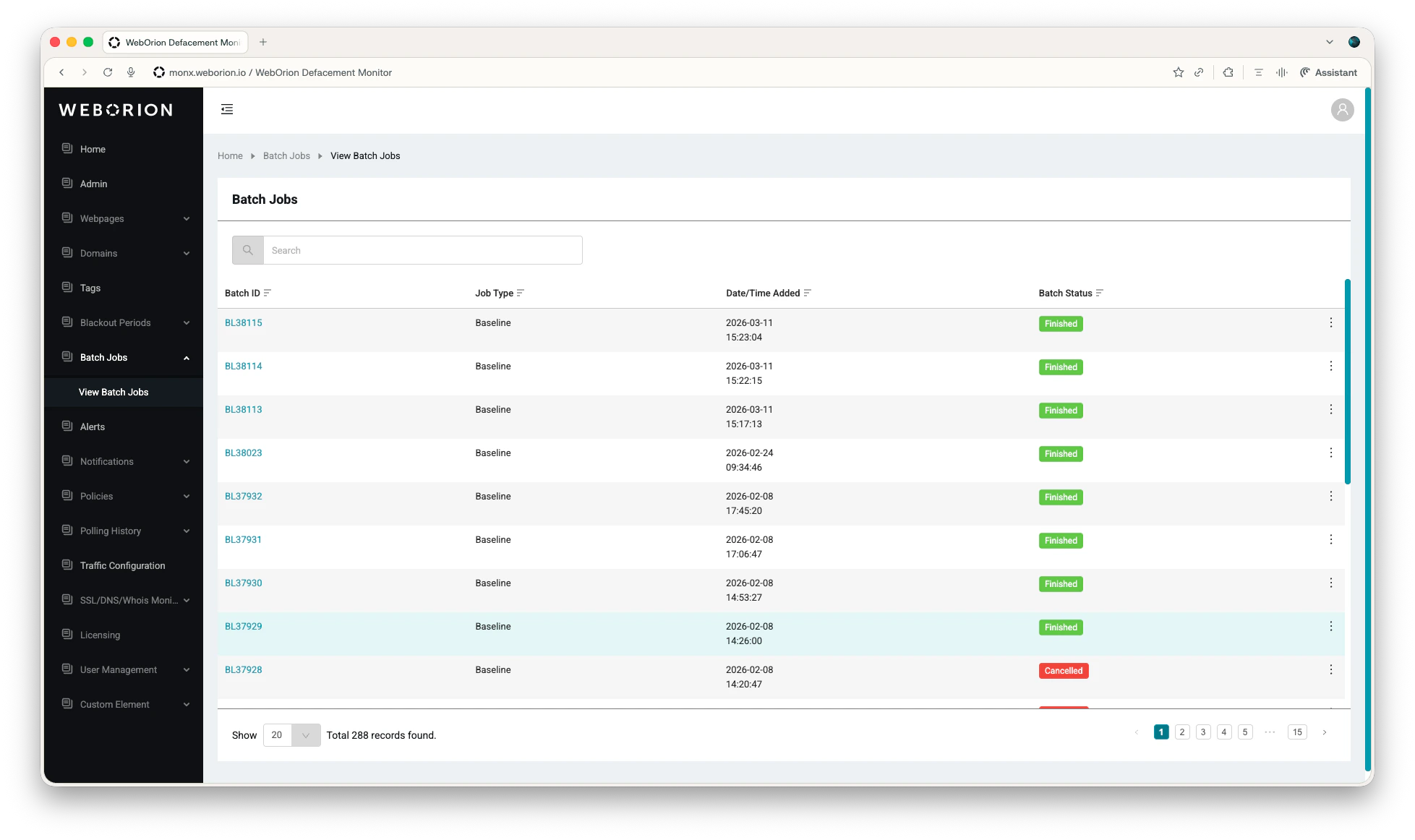 Click **Save**. WebOrion creates a baseline batch job and begins processing each URL. To track progress, go to **Batch Jobs → View Batch Jobs**.
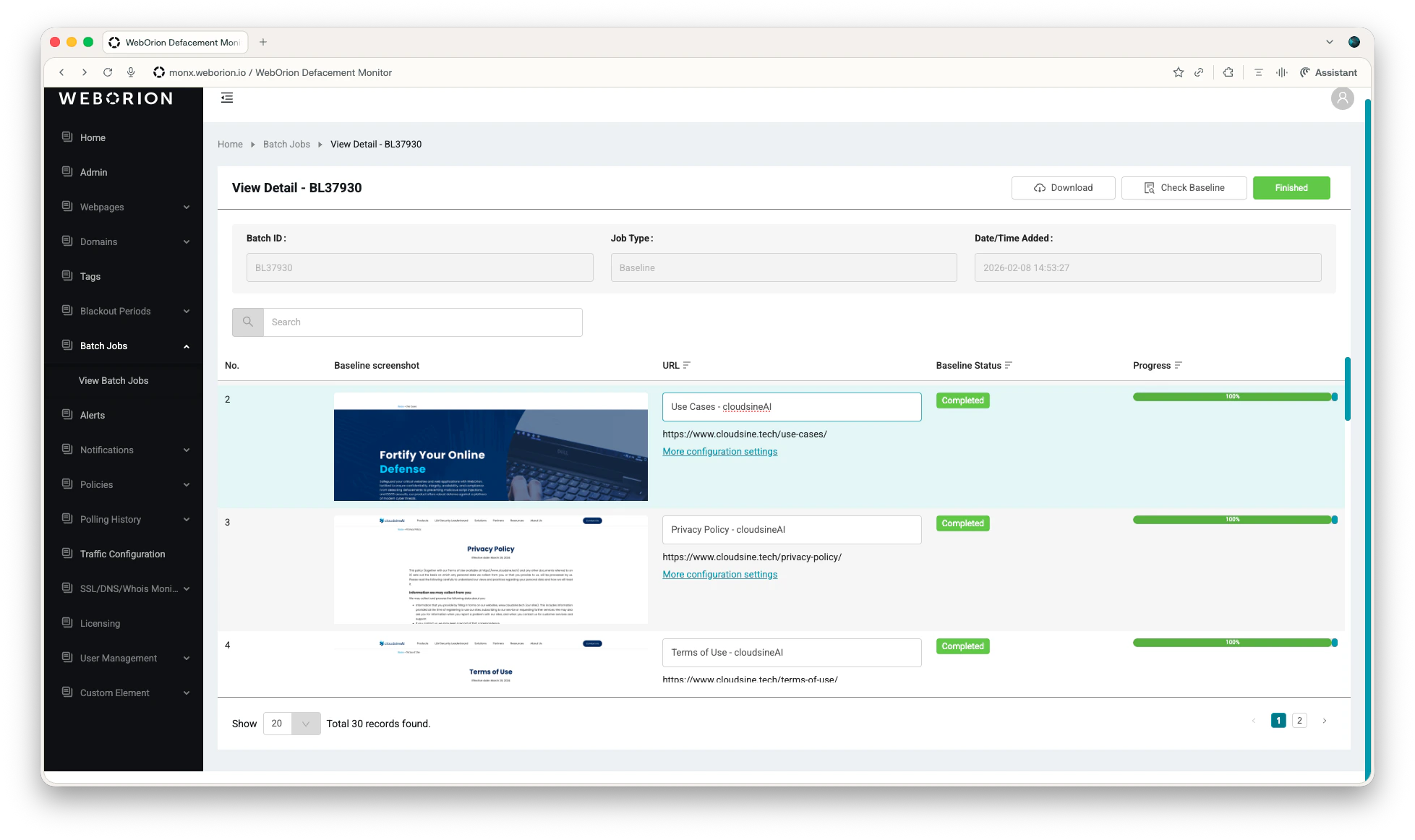 Click the **⋮** menu next to a Batch ID and select **View Detail** to see per-URL baseline status and progress bars. You can also edit webpage names directly from this view in the **URL** column.
**5. View completed webpages**
Click the **⋮** menu next to a Batch ID and select **View Detail** to see per-URL baseline status and progress bars. You can also edit webpage names directly from this view in the **URL** column.
**5. View completed webpages**
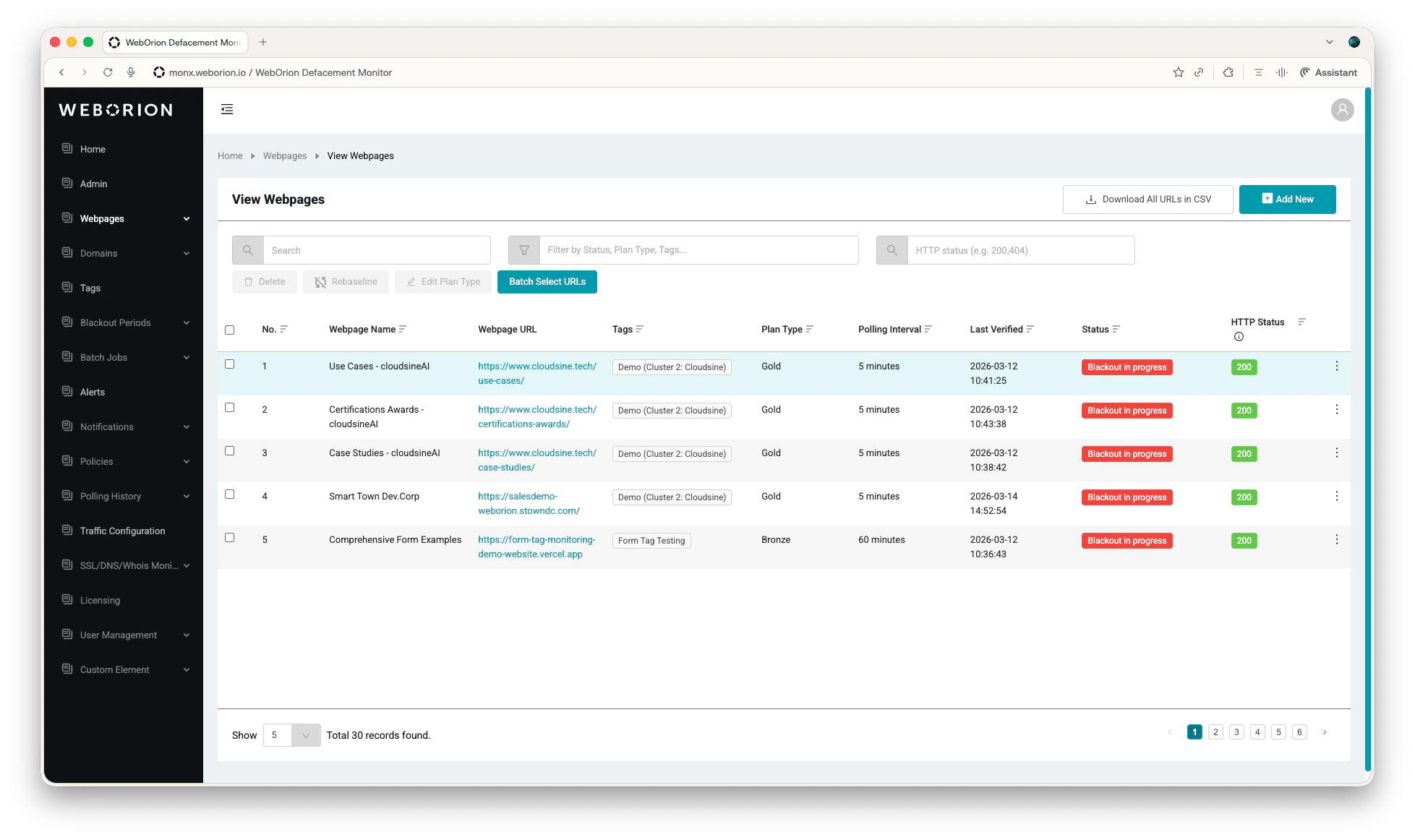 Once baselining is complete for a URL, it appears under **Webpage → View Webpages** with its status and last verified time.\\
***
## Tagging a webpage
1. Go to **Tags → Add New Tag**
2. Enter Tag Name and click **Create**
3. Click **⋮ → Edit & View URLs** on the tag you want to add URLs to
4. Click **Add URL Relations**.
5. Select the desired URLs and click **Add**
## Filtering by tag
From **Webpage → View Webpages**, filter the list by tag to narrow your view to a single category — for example, all pages for one client or all high-priority pages.
Once baselining is complete for a URL, it appears under **Webpage → View Webpages** with its status and last verified time.\\
***
## Tagging a webpage
1. Go to **Tags → Add New Tag**
2. Enter Tag Name and click **Create**
3. Click **⋮ → Edit & View URLs** on the tag you want to add URLs to
4. Click **Add URL Relations**.
5. Select the desired URLs and click **Add**
## Filtering by tag
From **Webpage → View Webpages**, filter the list by tag to narrow your view to a single category — for example, all pages for one client or all high-priority pages.