> ## Documentation Index
> Fetch the complete documentation index at: https://docs.weborion.io/llms.txt
> Use this file to discover all available pages before exploring further.
# Blackout Window
> Pause monitoring during planned maintenance to avoid unnecessary alerts.
If you need to temporarily pause monitoring for one or more webpages — for example, during scheduled website maintenance — you can set a Blackout Window. Polling will be suspended for the selected pages during the defined period.
## Adding a blackout window
For a single blackout period that runs once.
1. Go to **Blackout Period → Add Blackout Period**
2. Select the webpages you want to pause monitoring for in the table.
3. Select **Once** and set the **Start Date/Time** and **End Date/Time** for the blackout period
4. Click **Save**
Blackout period that happens on a regular schedule — for example, maintenance every night or every Weekend.
1. Go to **Blackout Period → Add Blackout Period**
2. Select the webpages you want to pause monitoring for in the table.
3. Select **Repeating** and set the **Effective From** and **Effective To** dates for the blackout period
4. Select the **Frequency** and set the respective **Start Date/Time** and **End Date/Time**
5. View the **Preview** Table to check the periods before they are added.
6. Click **Save**
| Field | Description |
| ------------------------- | --------------------------------------------------------- |
| **Effective From / To** | The period over which the recurring schedule stays active |
| **Start Time / End Time** | The repeating time window during which polling is paused |
| **Days** | For weekly schedules, the days the blackout applies to |
| **Dates** | For monthly schedules, the days the blackout applies to |
If effective start/end dates occur in the middle of a recurring blackout period, the date and time for only that particular period will be overridden to the start/end of the effective dates.
## Managing existing blackout periods
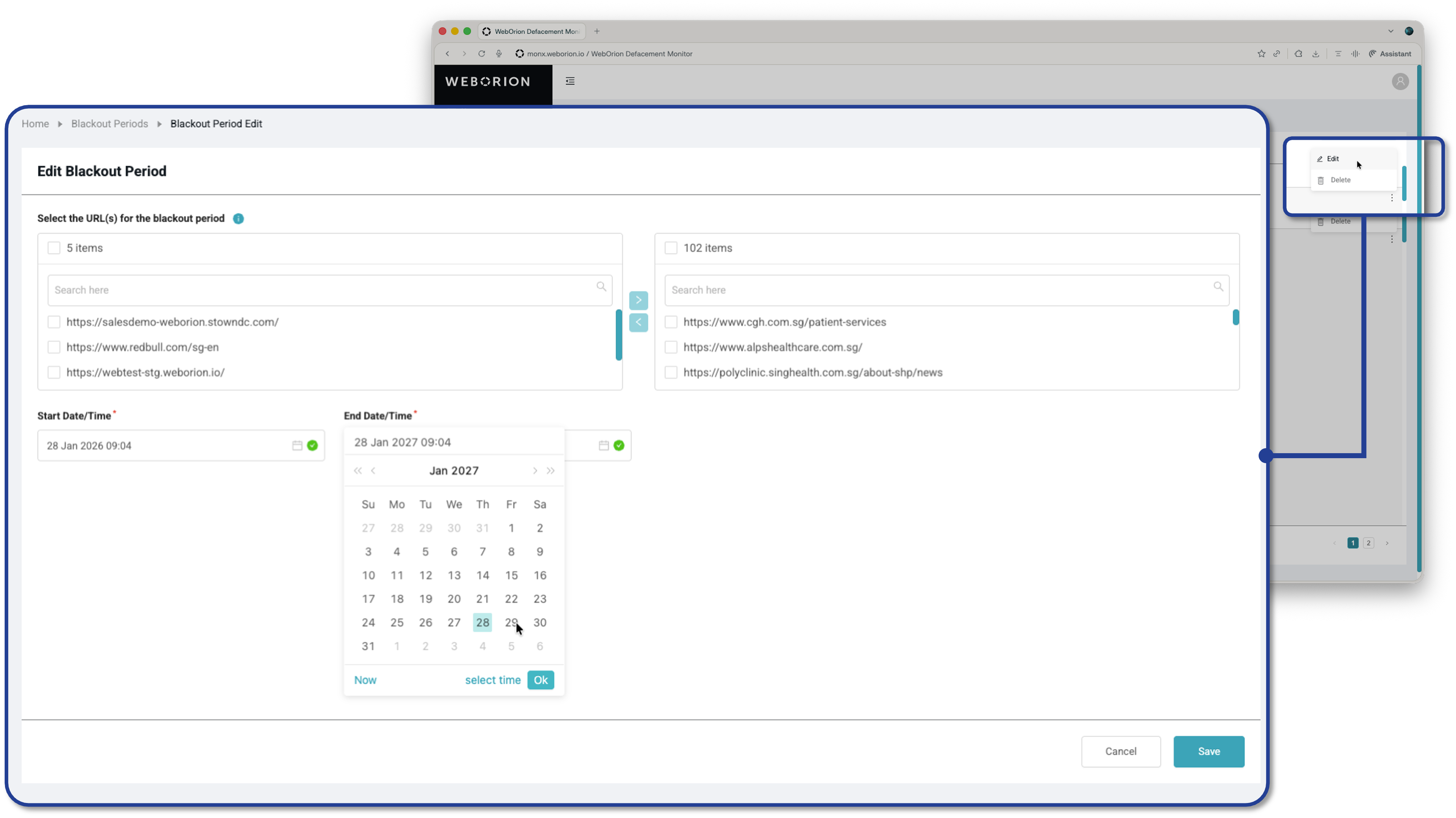 Go to **Blackout Period → Blackout Periods** to view all configured windows. From here you can:
* **Edit** the timing of an existing blackout period
* **Delete** a blackout period if it's no longer needed
Made changes to your webpage during the blackout window? Remember to update your baseline. See [Re-baselining Webpages](/defacement-monitor/managing-changes/re-baselining).
Go to **Blackout Period → Blackout Periods** to view all configured windows. From here you can:
* **Edit** the timing of an existing blackout period
* **Delete** a blackout period if it's no longer needed
Made changes to your webpage during the blackout window? Remember to update your baseline. See [Re-baselining Webpages](/defacement-monitor/managing-changes/re-baselining).