> ## Documentation Index
> Fetch the complete documentation index at: https://docs.weborion.io/llms.txt
> Use this file to discover all available pages before exploring further.
# Adding Contact Groups
> Organise contacts into groups to control who gets alerted for each monitored URL.
Contact Groups let you route alerts for different URLs to different sets of people. For example, you might want alerts for one page to go to your webmaster, while a vendor's team receives alerts for a separate set of pages.
## Creating a contact group
1. Go to **Notification → Contact Groups → Add New**
2. Enter a **Contact Group Name**
3. Click **Save**
Repeat this for as many groups as you need. A `DEFAULT` group exists out of the box and cannot be deleted.
## Adding contacts to a group
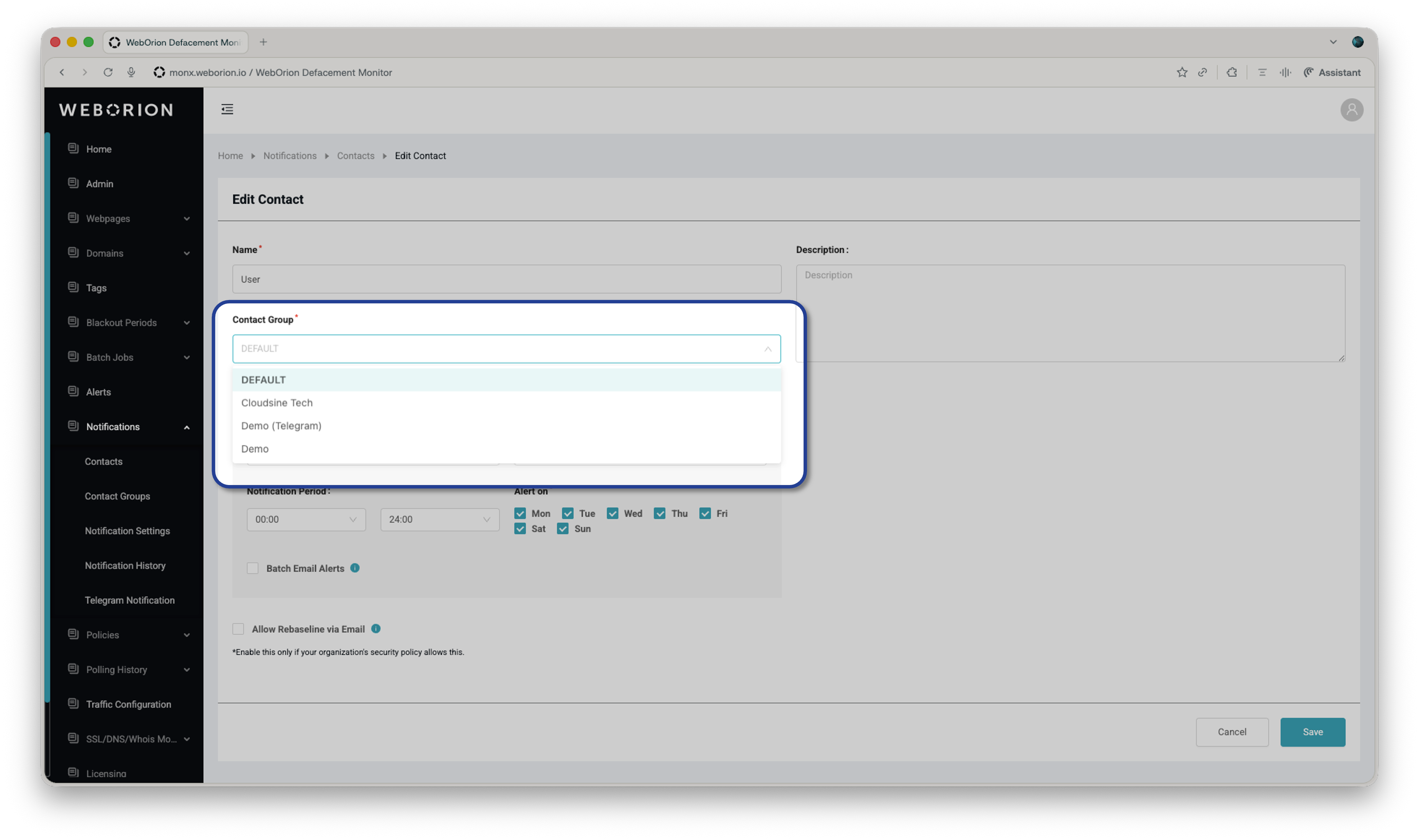 Once a group is created, assign contacts to it by editing each contact individually:
1. Go to **Notification → Contacts**
2. Click **Edit** on the contact you want to reassign
3. Change the **Contact Group** dropdown to the desired group
4. Click **Save**
A contact can only belong to one group at a time. If you need the same person to receive alerts from multiple groups, add them as separate contacts.
## Next step
Once your groups are set up, assign them to specific URLs via **Notification → View Notifications**. See [Assigning Contacts to Receive Notifications](defacement-monitor/managing-notifications/notifications) for details.
Once a group is created, assign contacts to it by editing each contact individually:
1. Go to **Notification → Contacts**
2. Click **Edit** on the contact you want to reassign
3. Change the **Contact Group** dropdown to the desired group
4. Click **Save**
A contact can only belong to one group at a time. If you need the same person to receive alerts from multiple groups, add them as separate contacts.
## Next step
Once your groups are set up, assign them to specific URLs via **Notification → View Notifications**. See [Assigning Contacts to Receive Notifications](defacement-monitor/managing-notifications/notifications) for details.