> ## Documentation Index
> Fetch the complete documentation index at: https://docs.weborion.io/llms.txt
> Use this file to discover all available pages before exploring further.
# Understanding Alerts
> What alert emails look like, how to read them, and how to drill into the details in the portal.
When WebOrion detects a change, it sends an email alert and logs an incident in the portal. This page explains both.
***
## The alert email
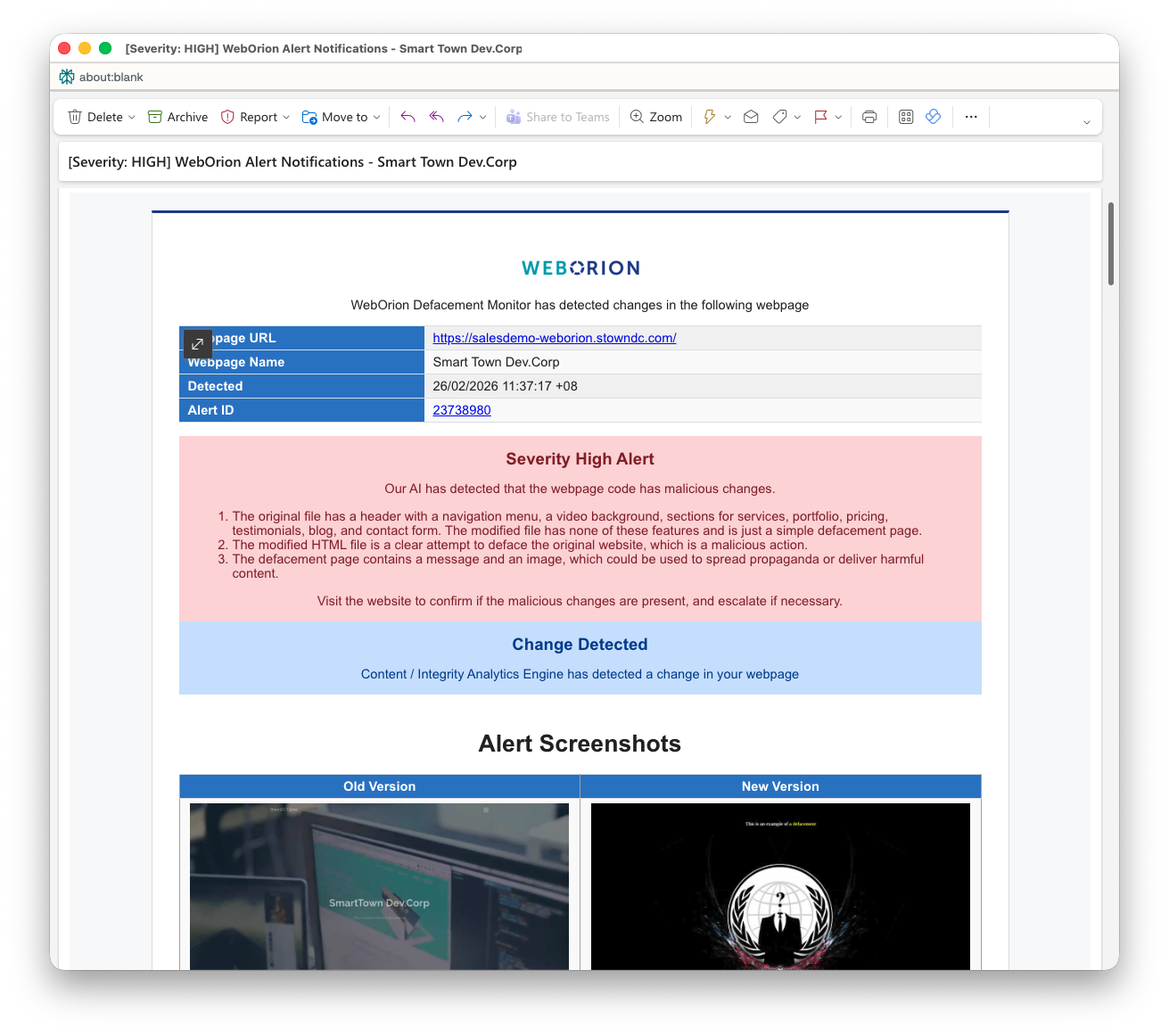 Every alert email has the same header structure:
| Field | Description |
| ---------------- | --------------------------------------------------------------------------- |
| **Webpage URL** | The URL where the change was detected |
| **Webpage Name** | The name you gave the webpage when adding it |
| **Detected** | Timestamp when the change was detected |
| **Alert ID** | A unique ID for this incident — click it to open the incident in the portal |
Below the header, the email shows a **Change Detected** summary indicating which engine triggered the alert.
### Content & Integrity Analytics alerts
These alerts show two sections:
**Content Analytics** — a table of element counts that have changed:
| Column | Description |
| ----------------------- | ---------------------------------------------------- |
| **Description** | The element type (e.g. Javascripts, # of HTML Lines) |
| **Last Verified Value** | The count at the time of this alert |
| **Baseline Value** | The count at the time of baselining |
| **Difference** | The delta between the two |
**Integrity Analytics** — a list of specific elements that were modified or removed, grouped by type (e.g. Javascripts, Href Links). Each entry shows the filename or identifier of the changed element.
### Webpage Unreachable Alerts
Every alert email has the same header structure:
| Field | Description |
| ---------------- | --------------------------------------------------------------------------- |
| **Webpage URL** | The URL where the change was detected |
| **Webpage Name** | The name you gave the webpage when adding it |
| **Detected** | Timestamp when the change was detected |
| **Alert ID** | A unique ID for this incident — click it to open the incident in the portal |
Below the header, the email shows a **Change Detected** summary indicating which engine triggered the alert.
### Content & Integrity Analytics alerts
These alerts show two sections:
**Content Analytics** — a table of element counts that have changed:
| Column | Description |
| ----------------------- | ---------------------------------------------------- |
| **Description** | The element type (e.g. Javascripts, # of HTML Lines) |
| **Last Verified Value** | The count at the time of this alert |
| **Baseline Value** | The count at the time of baselining |
| **Difference** | The delta between the two |
**Integrity Analytics** — a list of specific elements that were modified or removed, grouped by type (e.g. Javascripts, Href Links). Each entry shows the filename or identifier of the changed element.
### Webpage Unreachable Alerts
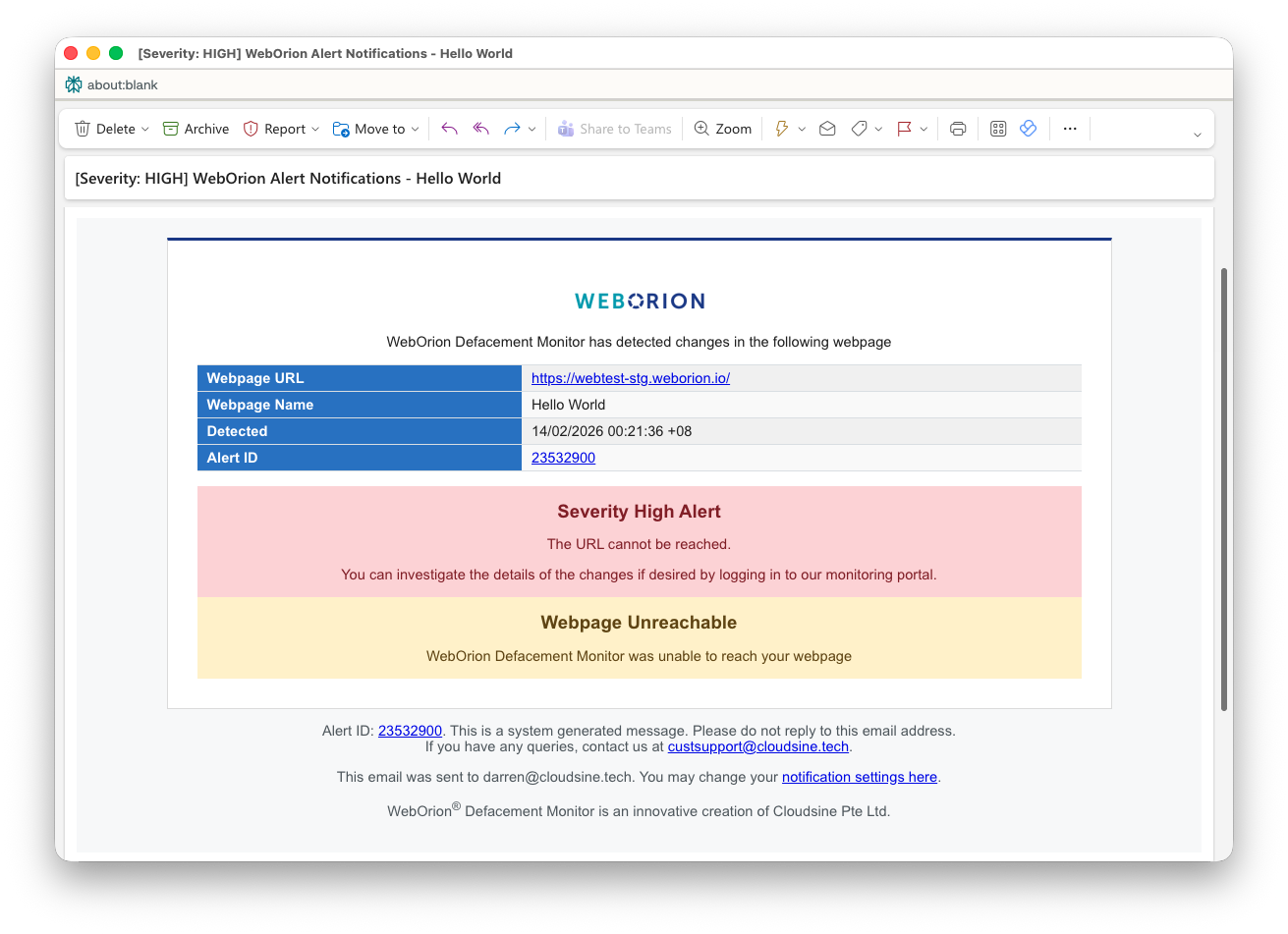 Sent when WebOrion cannot reach the page.
### User-Specified Keywords alerts
Sent when WebOrion cannot reach the page.
### User-Specified Keywords alerts
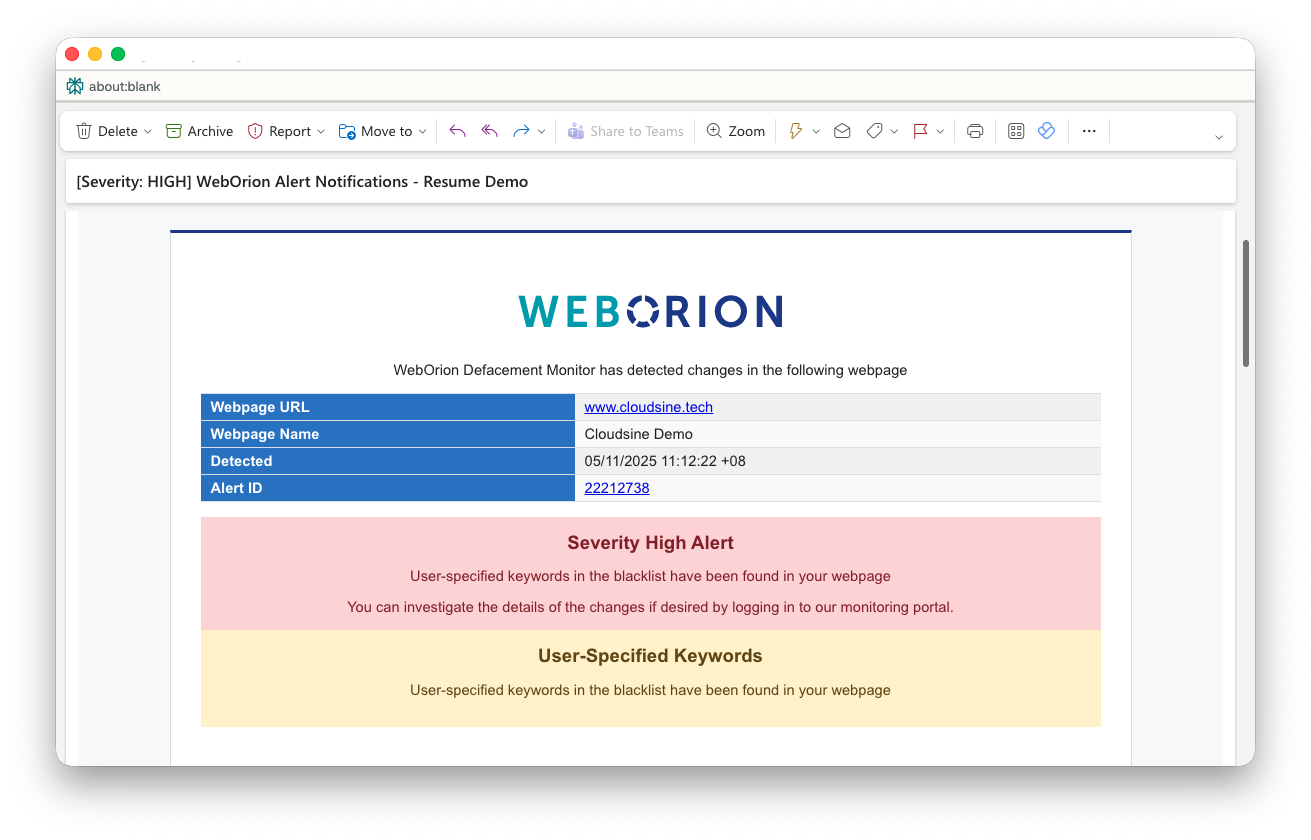 Sent when blacklist or whitelist keywords are triggered:
* **Blacklisted keywords found** — a keyword you've configured as forbidden was detected on the page
* **Whitelisted keywords missing** — a keyword you've configured as required was not found on the page
***
## Viewing an alert in the portal
1. Go to **Alerts** in the left sidebar
2. Click on the **Alert ID** to open the incident
3. The incident page shows a summary of all changes detected, for example:
```text theme={null}
# of HTML lines differs from last verification:
Last Verified value: 3495 | Current verified value: 5144 | Difference: 1649
Javascript (In-line_JS_#28) differs from current verification.
```
## Drilling into file changes
Sent when blacklist or whitelist keywords are triggered:
* **Blacklisted keywords found** — a keyword you've configured as forbidden was detected on the page
* **Whitelisted keywords missing** — a keyword you've configured as required was not found on the page
***
## Viewing an alert in the portal
1. Go to **Alerts** in the left sidebar
2. Click on the **Alert ID** to open the incident
3. The incident page shows a summary of all changes detected, for example:
```text theme={null}
# of HTML lines differs from last verification:
Last Verified value: 3495 | Current verified value: 5144 | Difference: 1649
Javascript (In-line_JS_#28) differs from current verification.
```
## Drilling into file changes
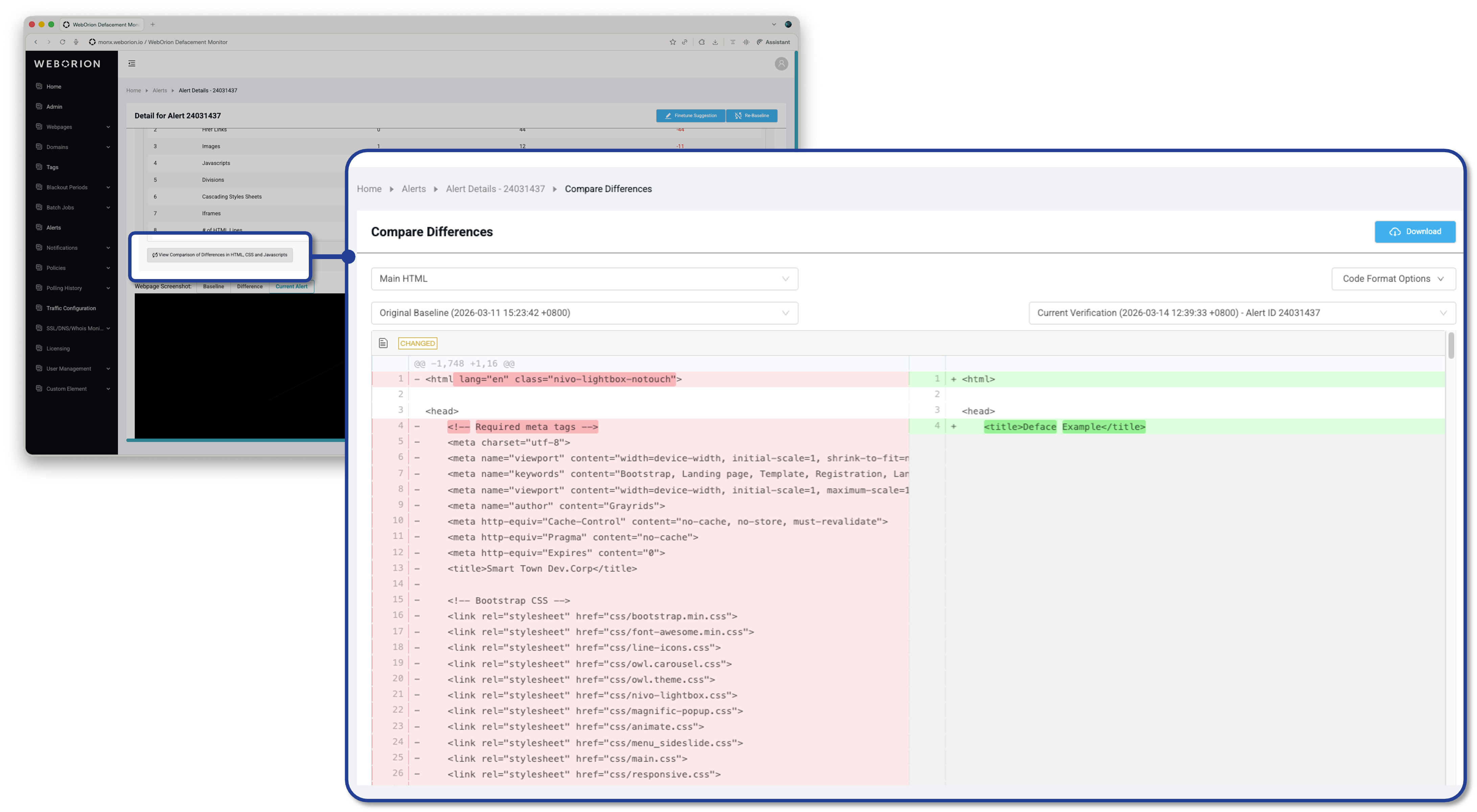 For alerts involving specific Javascript or CSS files, you can view the exact diff:
1. From the incident page, click on the specific file that changed
2. The diff view opens with a side-by-side comparison:
| Column | Description |
| ----------------- | --------------------------------------------------------- |
| **Left (red)** | The state of the file at the time the alert was triggered |
| **Right (green)** | The previous baseline state of the file |
Changed lines are highlighted, making it easy to identify exactly what was added, removed, or modified.
If the change looks authorised — a planned content update or a script version bump — re-baseline the page to clear the alert and set the new state as the reference. See [Re-baselining Webpages](/defacement-monitor/managing-changes/re-baselining).
For alerts involving specific Javascript or CSS files, you can view the exact diff:
1. From the incident page, click on the specific file that changed
2. The diff view opens with a side-by-side comparison:
| Column | Description |
| ----------------- | --------------------------------------------------------- |
| **Left (red)** | The state of the file at the time the alert was triggered |
| **Right (green)** | The previous baseline state of the file |
Changed lines are highlighted, making it easy to identify exactly what was added, removed, or modified.
If the change looks authorised — a planned content update or a script version bump — re-baseline the page to clear the alert and set the new state as the reference. See [Re-baselining Webpages](/defacement-monitor/managing-changes/re-baselining).