
This page covers false positive scenarios only. If you suspect an alert may be a genuine defacement, do not dismiss it without investigation.
Quick reference
Scenario 1: One-time legitimate change
Description: The webmaster updated the page — a new article, a job posting, an updated banner. The page has changed enough from the baseline to trigger an alert. How to identify: Open the alert and look at the changes detected. If the changes look intentional and expected (e.g. new links on a careers page, a new headline), click View Comparison of Differences on the alert details page to see the actual HTML/CSS/JS diff. If the diff confirms an expected change, the alert is a false positive. Fix: Re-baseline the webpage. This updates the baseline to the current state of the page. Re-baselining also runs an intelligent baseline process that detects elements which change on every page load, automatically excluding them from future monitoring. See Re-baselining Webpages for steps.Scenario 2: Repeated alerts for the same element
Description: Some elements change regularly — hourly or daily — due to tracker scripts, session IDs, or rotating ad content. WebOrion’s intelligent baselining looks at the page over three requests across roughly one minute, so elements that change less frequently than that won’t be automatically excluded. How to identify: Look at multiple alerts for the same webpage. If the alerts repeatedly flag the same script, CSS file, image, or link, this is the likely scenario. Click View Comparison of Differences on those alerts — you’ll often see a dynamic ID or token embedded in the element that changes each time. If the same element appears across multiple pages on the same site, check whether each page is being alerted repeatedly (this scenario) rather than each page being alerted just once (which would be Scenario 1 repeated across multiple pages). Fix: Add an exclusion rule to a policy. Each webpage can only have one policy assigned to it — so if one already exists, add a new rule to that policy rather than creating a separate one.Checking if a policy is already assigned
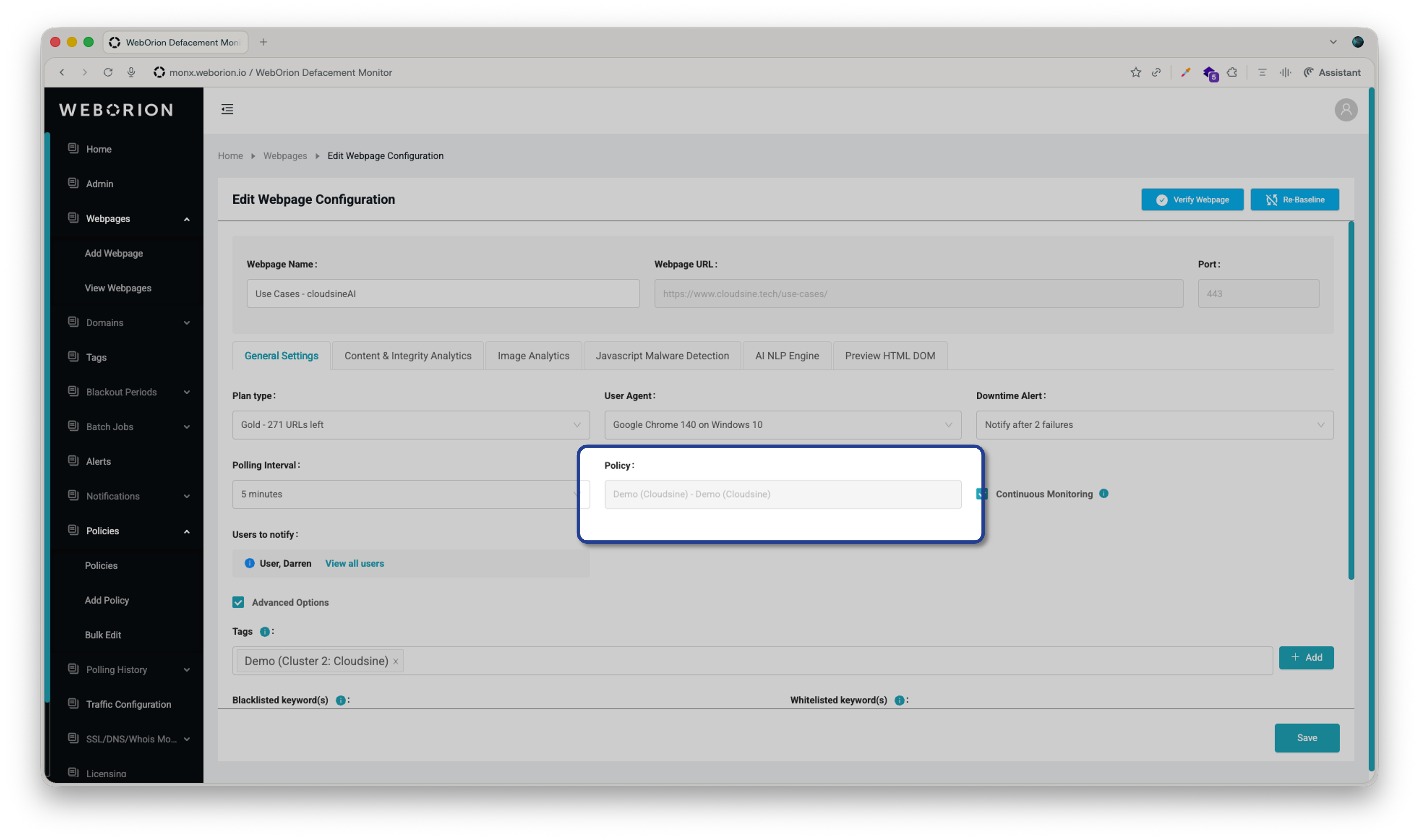
Creating or editing a policy rule
- Go to Policies → Add Policy (or open the existing policy to edit it)
- Under Rule List, click Add New Rule and configure the following:
Available element types:
HREF— href links, matched on the URL of the linkImage Filename— images, matched on filename/pathJavascript Filename— scripts, matched on filename/path (useInline_JS_#Xfor inline scripts)Stylesheet Filename— stylesheets, matched on filename/path (useIn-line_CSS_#Xfor inline styles)Javascript Content— scripts, matched on text content inside the scriptStylesheet Content— stylesheets, matched on text content inside the stylesheet
RequestId= parameter that changes each load, use RequestId= as the keyword — not RequestId=3654, which may stop matching when the ID value changes.
- Click Add New Rule again if you need additional rules on the same policy
- In the URL selector, move any pages this policy should apply to into the Selected URLs box
- Click Save
Scenario 3: Repeated alerts for element count changes
Description: The Content Engine tracks the count of each element type on the page — links, images, scripts, stylesheets, iframes, divisions, and HTML lines. If your page dynamically adds or removes elements (e.g. a sidebar that loads rotating links), those count changes will trigger alerts. How to identify: Look at multiple alerts for the same webpage. If the count of a particular element increases and decreases by a similar number repeatedly (e.g. HTML lines: +3 in one alert, -3 in the next, +3 after that), this is the likely scenario. If the count changes by more than roughly 20%, it may not be a false positive — it could indicate the server is sometimes returning an error page instead of the normal page. Fix: Set a threshold for the specific element that’s alerting. A threshold defines an acceptable ± buffer around the baseline count — counts within that range will not trigger an alert. For example: if HTML line count fluctuates between 92 and 98, set Baseline = 95, Threshold = 3. The acceptable range becomes 95 ± 3 = 92–98.Setting a threshold
- Go to Webpage → View Webpages
- Click ⋮ → Configuration on the relevant webpage
- Select the Content & Integrity Analytics tab
- Enter the acceptable variance in the Threshold column for the relevant element
- Click Save
Scenario 4: HTML title or Full Page Signature keeps changing
Description: Some pages have dynamically generated titles, or embed timestamps and session IDs directly in the HTML source. The Content Engine detects both:- HTML Title — the page title extracted from the HTML, shown in the browser tab
- Full Page Signature — a hash of the entire HTML source; any single character change triggers an alert. This is especially common on modern pages that are not fully static.
- Go to Webpage → View Webpages
- Click ⋮ → Configuration on the relevant webpage
- Select the Content & Integrity Analytics tab
- Uncheck the checkbox to the left of HTML Title or Full Page Signature as appropriate
- Click Save
Scenario 5: Images triggering alerts
Description: Images served through Content Delivery Networks (CDNs) are often recompressed or re-encoded on the fly. This changes the file signature even though the image itself hasn’t meaningfully changed, causing false positive alerts. Fix: Enable Smart Image Hash (SIH). Instead of comparing file signatures directly, SIH scores the visual similarity between the baseline image and the current version on a scale of 0 to 100.
The default alert threshold is 10 — images scoring 10 or below will not trigger an alert.
Enabling SIH
- Go to Webpage → View Webpages
- Click ⋮ → Configuration on the relevant webpage
- Select the Content & Integrity Analytics tab
- Click Images → Smart Image Hash
- Toggle the switch to enable SIH
- Drag the sensitivity slider to set your threshold
- Click OK, then Save