Update the reference baseline after making authorised changes to a monitored webpage.
After making authorised changes to a webpage, you’ll need to re-baseline it so that WebOrion uses the updated version as the new reference for future polling checks. Without re-baselining, WebOrion will continue to flag the changes as alerts.
Click the ⋮ menu next to the webpage and select Configuration
Click the Re-Baseline button at the top of the page
This triggers the Intelligent Baselining Process for that page. Once complete, the new state is saved as the reference baseline.
Previously disabled elements will remain disabled after re-baselining. Newly added or changed elements will appear in the Details dropdown for you to review and configure.
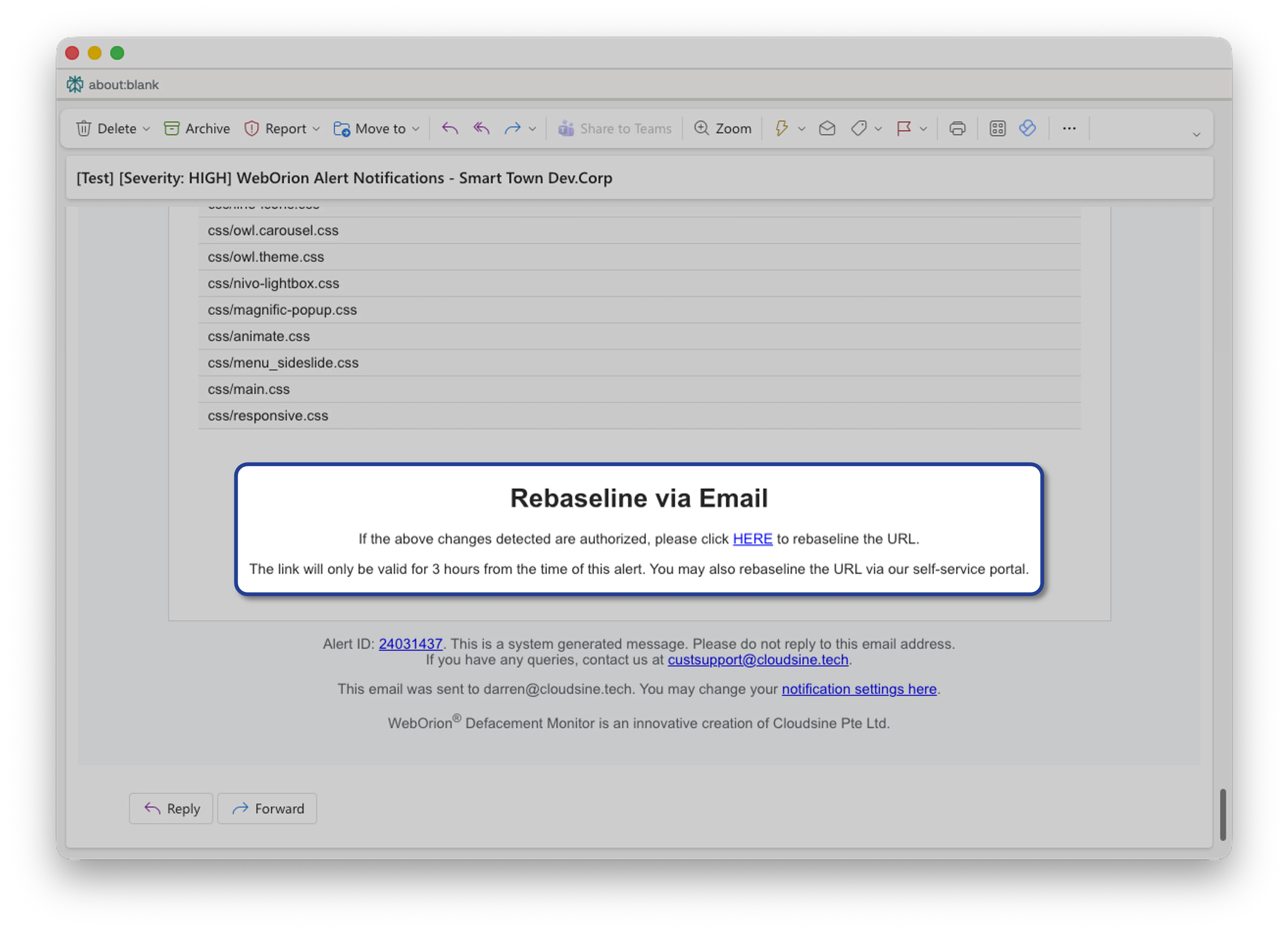
If a contact has the Allow Re-baseline via Email option enabled, they will receive a link in their alert email that triggers re-baselining directly — without needing to log into the portal.Clicking the link will run the Intelligent Baselining Process and automatically save the recommended baseline.