
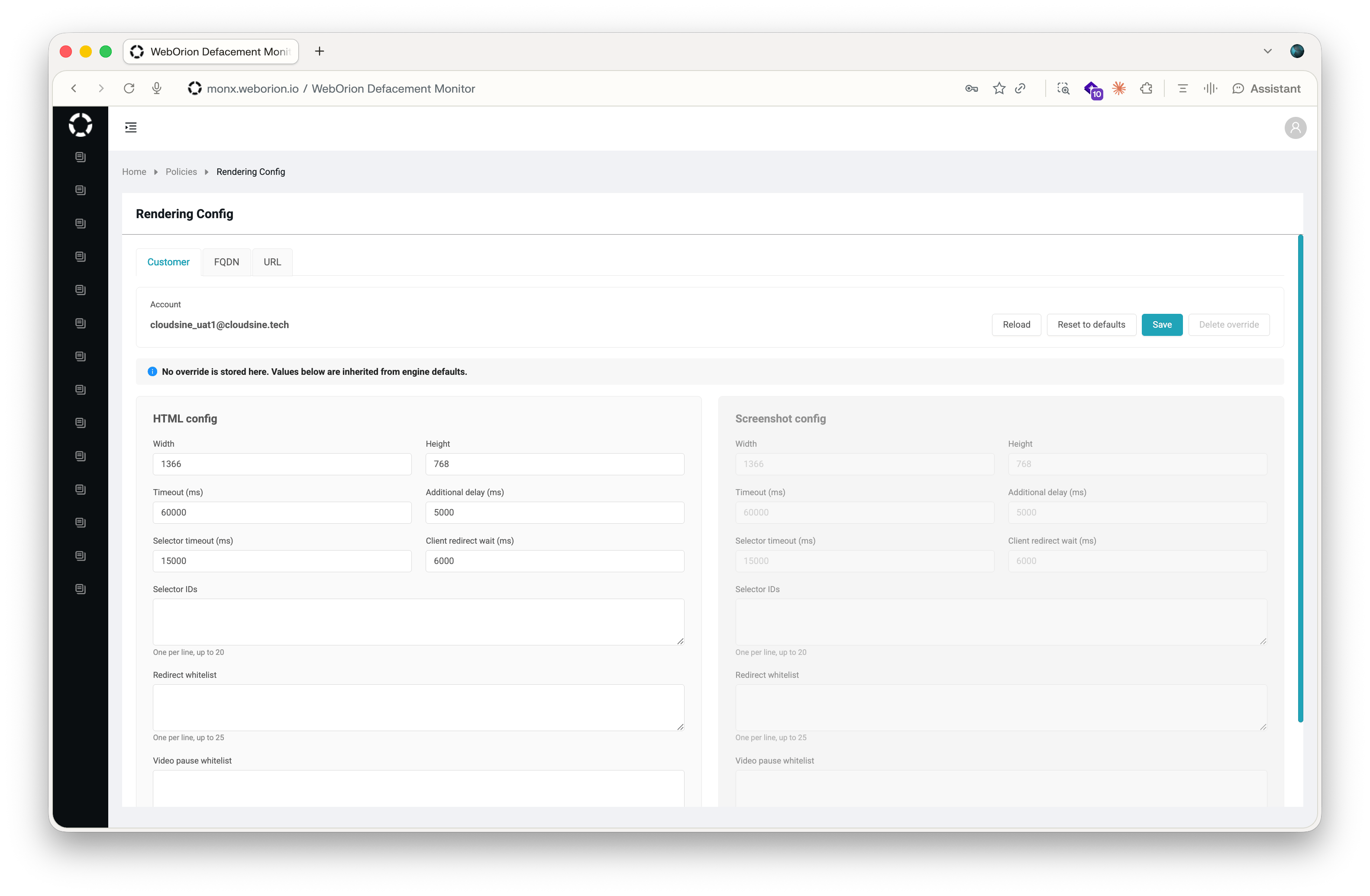
Rendering configuration changes how a page is captured, not what WebOrion monitors on it. To choose which elements WebOrion tracks, see What WebOrion Monitors.
Quick reference
How settings are inherited
Rendering settings are layered. WebOrion resolves each setting in the following order, and each level overrides the one before it:- Engine defaults: the built-in values of the rendering engine assigned to your account.
- Customer: values that apply to every webpage in your account.
- FQDN: values that apply to every webpage on one domain, such as
www.example.com. - URL: values that apply to a single webpage.
90000 at the FQDN level, every webpage on that domain uses a 90-second timeout unless a webpage has its own URL-level value.
Open rendering configuration
- Go to Policies → Rendering Config.
- Select the tab for the level that you want to configure: Customer, FQDN, or URL.
- On the FQDN tab, select a domain from Domain (FQDN). On the URL tab, select a webpage from Webpage URL.
Understanding the configurations
Each level shows two panels:- HTML config: settings that apply when WebOrion captures the page’s HTML for content and integrity checks.
- Screenshot config: settings that apply when WebOrion captures a screenshot of the page.
The fields that appear depend on the rendering engine assigned to your account. Fields that the engine doesn’t use aren’t shown. If a setting described on this page isn’t visible to you and you wish to use it, please contact support.
Change a setting
- Open the level and, if needed, select a domain or webpage.
- Enter the new value. For list fields, enter one item per line. For True/False fields, select a value from the list.
- Click Save.
Return a field to its inherited value
Clear the field and click Save. The field takes the value from the level above.Discard unsaved changes
Click Reload. The form reloads with the saved values. If you have unsaved changes, WebOrion prompts you to confirm before it discards them.Clear every setting at a level
- Reset to defaults fills the form with the values inherited from the level above and marks every field at this level to be cleared. Review the values, then click Save to apply them. Nothing changes until you save.
- Delete override immediately removes every value stored at this level. WebOrion prompts you to confirm. Afterward, the level inherits all of its values from the level above.
Settings reference
Page load
Redirects
Late-loading content
Videos
Example: Wait for search results to load
A search results page fills its results container with a script a few seconds after the page itself loads. Without adjustment, WebOrion sometimes captures the container before it’s filled, so the baseline and later polls differ depending on timing.- Go to Policies → Rendering Config and select the URL tab.
- Select the search results webpage from Webpage URL.
- In Selector IDs, enter the
idof the results container, for examplesearch-results. - In Selector timeout (ms), enter
15000. - Click Save.
- Re-baseline the webpage.
Example: Stay on a page that redirects to sign-in
A page redirects visitors who aren’t signed in tohttps://sso.example.com/login. You want to monitor the page as it’s served before the redirect.
- Go to Policies → Rendering Config and select the FQDN tab.
- Select the domain from Domain (FQDN).
- In Redirect whitelist, enter
https://sso.example.com/. - Click Save.
- Re-baseline the affected webpages.
https://sso.example.com/.
Still seeing alerts from dynamic content after tuning rendering? See Reducing False Positives.